
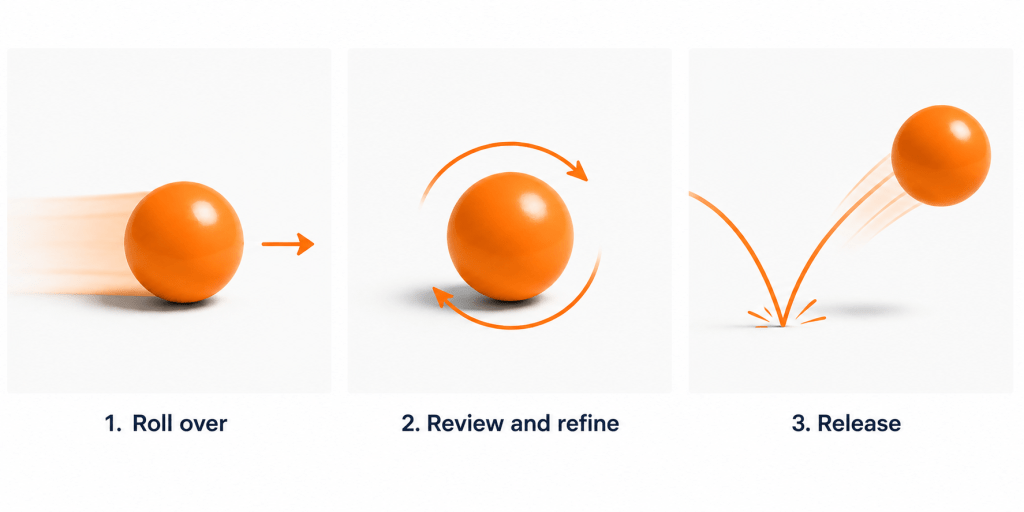
This guide will help you prepare your Moodle course for a new run. It walks you through the rollover process and highlights key tasks, to help you create a clear, well-organised, and accessible course.
Roll over
Rollover is the process of copying content from one Moodle course to another, allowing you to re-use content from a previous run.
Please familiarise yourself with the steps below, before performing a course rollover.
Step-by-step guidance
New modules (no previous content)
If your module is brand new and not based on a previous run, contact the Digital Education team to apply the Brookes VLE template sections.
Need help?
If you’d like us to complete the rollover for you, please contact the Digital Education team and provide the full name of:
- the module you want to roll content from
- the module you want to roll content to
Brookes VLE template
- How do I use the Brookes VLE template?
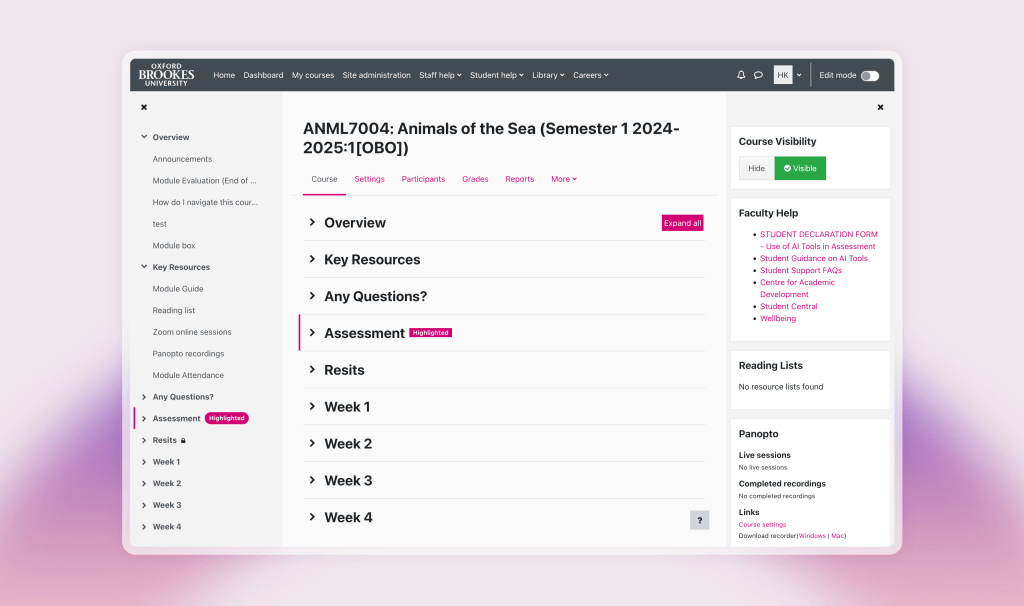
- Use the five standard sections at the top of the course
- Do not rename or reorder these sections
Coursework
There should be no requirement to manually create summative dropboxes in upcoming courses, because, for each summative assessment in Banner, a dropbox will be automatically deployed to your Moodle course during the first few weeks of the semester.
Meta-linked Courses
If you plan to meta-link courses, ensure this is set up before Week 1 of the semester. This ensures Coursework dropboxes are deployed correctly.
See: How will the summative Coursework activities be deployed to metalinked courses?
Reading lists
One of the key resources to include in your course is your module reading list.
See: How do I embed a reading list (or section) in Moodle?
Review and Refine
Streamline your course
Too much content on the course page (for example, lengthy paragraphs of text, embedded videos, long lists of hyperlinks) can create clutter and excessive scrolling.
Move content into clearly labelled Pages, Subsections, Folders, or Reading Lists to improve navigation and make it easier for students to find what they need.
Visit: Streamlining your course in Moodle
Accessibility
To meet inclusive design principles and government accessibility requirements, all digital teaching materials must be accessible.
Get help
- Visit the University web page: Accessibility Guidance for staff which provides tools, guidance, and supporting documentation, including:
Check your content
- Anthology Ally is a Moodle plugin that helps identify and improve accessibility issues: Getting Started with Ally
- Top five tips for digital accessibility (Google doc)
Release – Go Live
Enrol your teaching team
As a Module Leader, you may need to enrol Co-teachers at the start of the semester. When enrolling, set an appropriate duration or end date.
If access is lost, check Participants to see if enrolments are suspended: How do I reactivate suspended enrolments in Moodle?
Make your course visible
Once your course is ready, make it visible to students:
Student view
You can switch to Student view to check how your course appears:
Each Moodle module also includes a short video: How do I navigate this course