
If you have two runs of a module in the same semester you may choose to meta-link the Moodle courses. This allows you to maintain learning materials in a single ‘parent’ course while keeping the other ‘child’ course hidden from students. Students from both module runs will then access the same parent course.
In this article:
When should I meta-link the Moodle course?
Set up meta-links before Week 1 of the semester. This ensures that Coursework activities from all linked module runs are deployed correctly to the main ‘parent’ course during the first few weeks of semester.
Warning: If you create the meta-link after Coursework activities have already been deployed, activities from the newly linked course will not deploy automatically to the parent course. Please contact Digital Education team for support.
How should I meta-link the Moodle courses?
Decide which course will be the main ‘parent’ course that students can access, and which course will be the hidden ‘child’ course.
Example:
Parent course
META5001: Metal Linking (Semester 1 2026-2027:1[OBO])
This course will contain the learning materials and be visible to students. Enrolments from the child course will be linked to it.
Child course
META5001: Metal Linking (Semester 1 2026-2027:2[OBS])
This course will remain hidden from students and contain no learning materials.
Notice that each module run includes a suffix after the colon, such as :1 or :2. This identifies the module run and is important when distinguishing Coursework activities and submission groups later.
To meta-link courses, see: How do I meta-link Moodle courses?
How will Coursework activities be deployed to meta-linked courses?
Provided the meta-link is created before Week 1, Coursework activities for all linked module runs will be deployed automatically to the parent course.
Example:
The parent course META5001: Metal Linking (Semester 1 2026-2027:1[OBO])will contain Coursework activities for both runs:
| Coursework activity | Module run |
|---|---|
| META5001 (202609:1) CW S1 Week 10 Project Work (Individual) | Run 1 |
| META5001 (202609:1) CW S1 Week 13 Set Exercise | Run 1 |
| META5001 (202609:2) CW S1 Week 10 Project Work (Individual) | Run 2 |
| META5001 (202609:2) CW S1 Week 13 Set Exercise | Run 2 |
The :1 and :2 suffixes identify which module run the Coursework activity belongs to.
Although all activities appear in the parent course, each Coursework activity is restricted to the relevant student group. Students will only see the submission points that apply to their own module run, unless you choose to use a single submission point for both runs (see later in this article).
How are Submission groups created?
Submission groups are created automatically from the assessment components defined in Banner.
These groups must not be edited or deleted.
Example:
- (DO NOT EDIT) META5001 (202609:1) – CWS1WEEK10-1 OE
- (DO NOT EDIT) META5001 (202609:1) – CWS1WEEK10-1 RE
- (DO NOT EDIT) META5001 (202609:1) – CWS1WEEK10-1 UR
- (DO NOT EDIT) META5001 (202609:1) – CWS1WEEK13-2 OE
- (DO NOT EDIT) META5001 (202609:1) – CWS1WEEK13-2 RE
- (DO NOT EDIT) META5001 (202609:1) – CWS1WEEK13-2 UR
- (DO NOT EDIT) META5001 (202609:2) – CWS1WEEK10-1 OE
- (DO NOT EDIT) META5001 (202609:2) – CWS1WEEK10-1 RE
- (DO NOT EDIT) META5001 (202609:2) – CWS1WEEK10-1 UR
- (DO NOT EDIT) META5001 (202609:2) – CWS1WEEK13-2 OE
- (DO NOT EDIT) META5001 (202609:2) – CWS1WEEK13-2 RE
- (DO NOT EDIT) META5001 (202609:2) – CWS1WEEK13-2 UR
Group name structure:
Each group name includes the following elements:
- (DO NOT EDIT) – a reminder that the group should not be edited in any way
- META5001 (202609:1) – module code, academic period, and module run
- CWS1WEEK10-1 – assessment type, semester, due week, and Banner assessment component number.
and one of the following mark types
- OE – for Original Entry submissions
- RE – for capped Resit submissions
- UR – for un-capped Resit submissions
Option 1: If you would like separate submission points for each module run
By default, Moodle creates a separate Coursework activity for each assessment component and each module run.
For example, if two module runs are meta-linked, there will usually be at least two Coursework activities for the same assessment – one for each run.
These activities are restricted automatically to the appropriate student groups, so students only see their own submission point.

Option 2: If you would like one submission point for all students
If you would prefer all students across meta-linked courses to submit to a single submission point, one summative Coursework activity can be used as the shared submission point for all module runs.
To achieve this, the student groups from the other meta-linked module runs are added to the access restrictions of the chosen Coursework activity. You should then remove the restriction groups from the unused duplicate Coursework activities and hide the activity.
This allows students from all linked module runs to view and submit to the same Coursework activity.

Follow these steps to use one summative Coursework activity as the shared submission point for all students across meta-linked courses
Step 1: Add the student groups from the other meta-linked (‘child’) courses to the main submission point.
- Identify the Coursework activity you would like to use as the main submission point.
Example:CWS1WEEK10 – META5001 (202609:1)CW S1 Week 10 Written assignment (Individual)
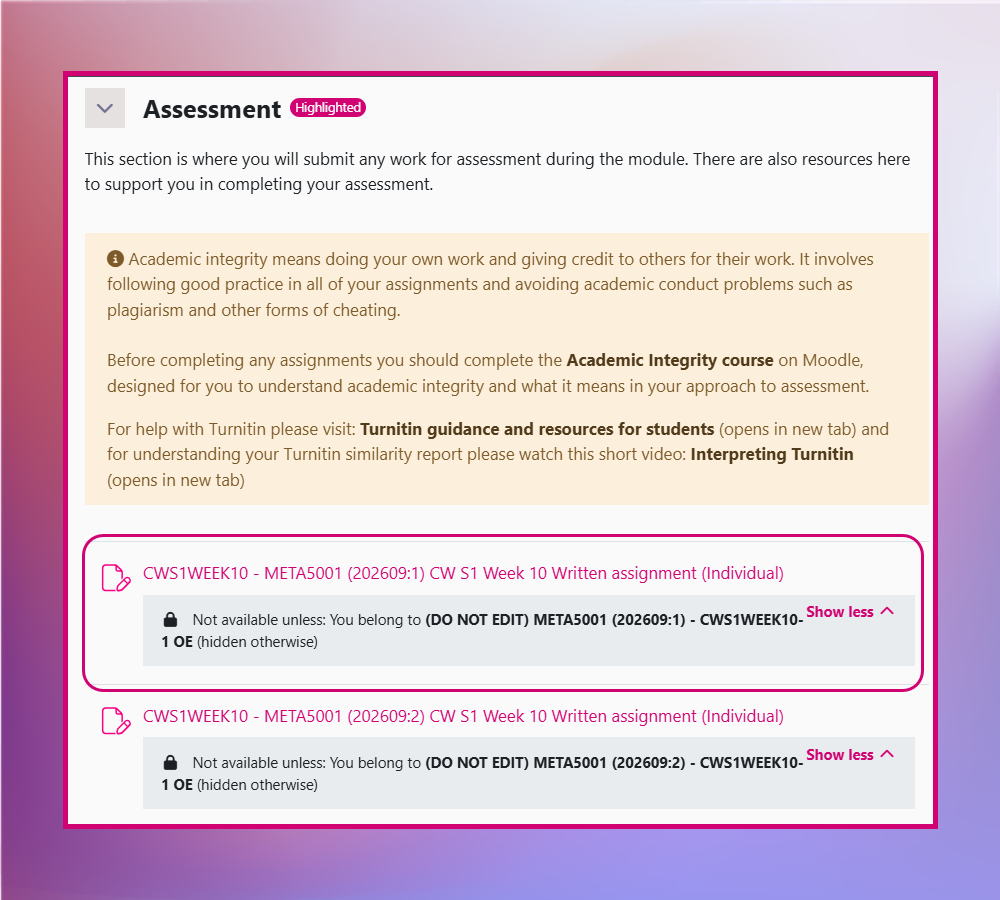
- Open the activity and select Settings.
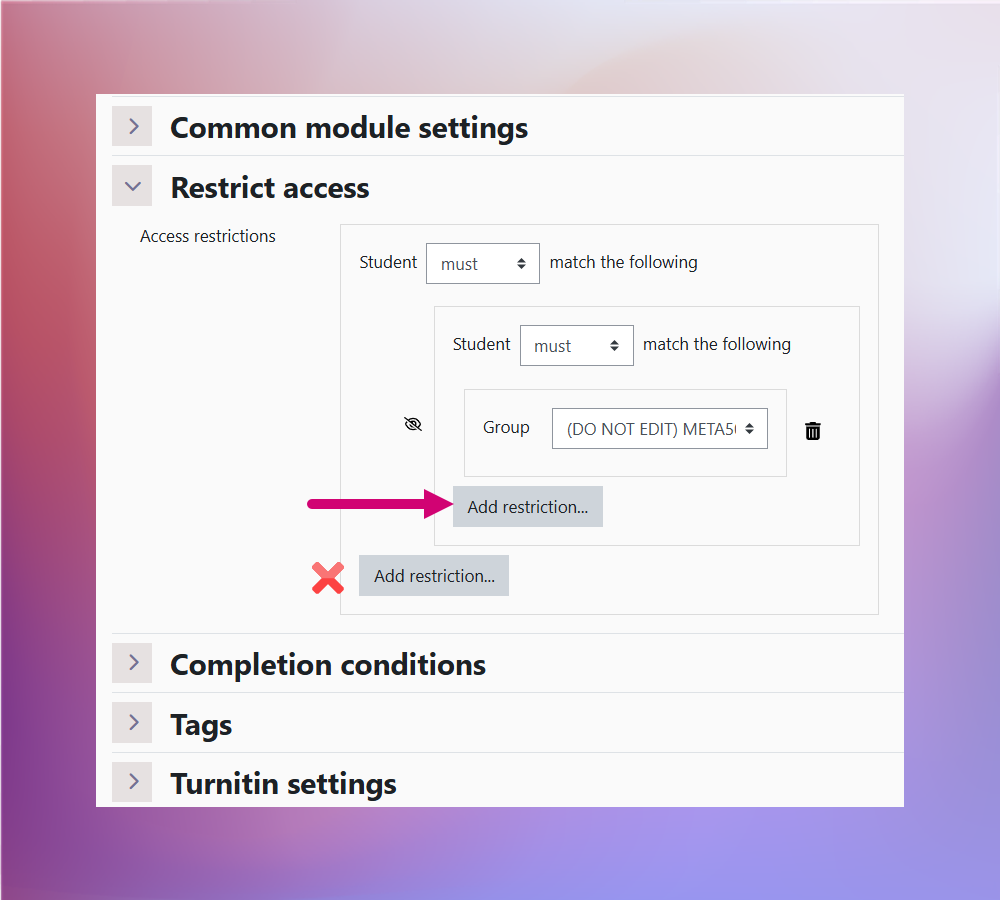
- Under Restrict access, select Add restriction within the existing restriction set.
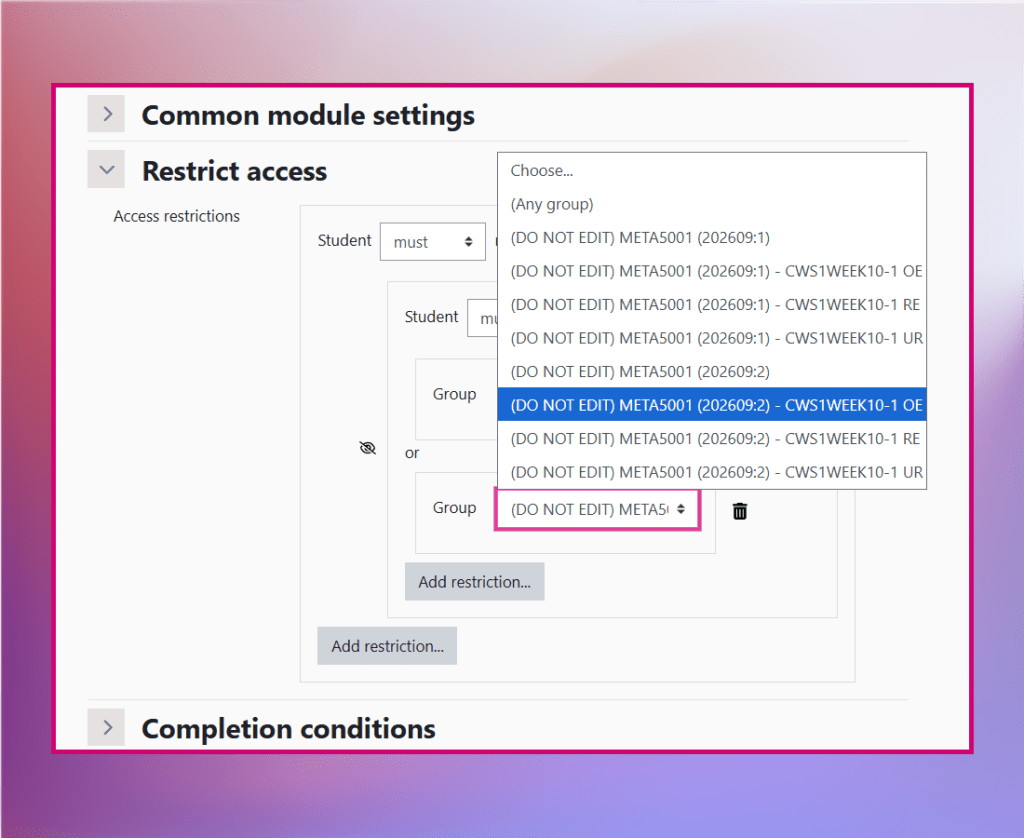
- From the list of restriction types, select Group.
- From the dropdown menu, select the student groups from the other meta-linked (‘child’) courses.
Select the correct student group from the drop-down list to avoid access or submission issues.
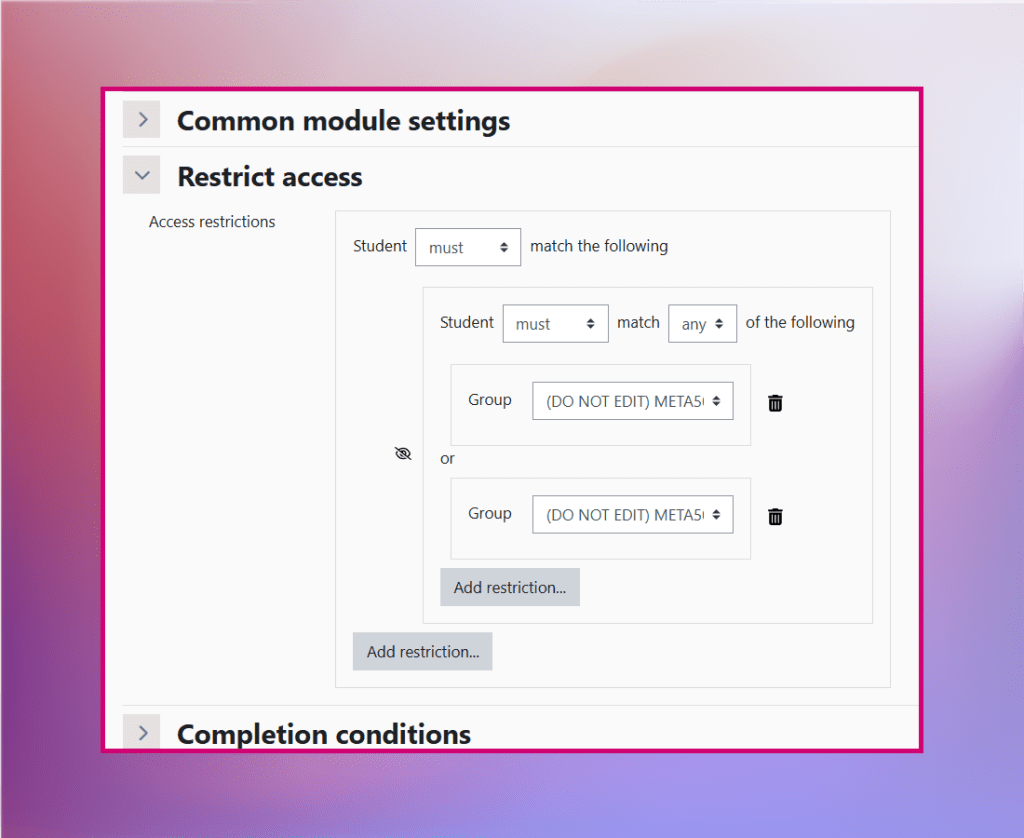
- Once all required groups have been added, the restriction text should read:
Student must match any of the following
Each group restriction will be separated by or, allowing students from all selected groups to access and submit to the activity.
- Select Save and return to course at the bottom of the page.
- On the Assessment page click ‘Show more’ to expand. This displays the restriction groups for the ‘parent’ Coursework activity, unless the activity is hidden from students.
If it is still hidden (the default for Coursework activities), Hidden from students is displayed instead.
Step 2: Delete the restriction set from the ‘child’ Coursework activities
After configuring the shared submission point, you must delete the restriction set from the unused ‘child’ Coursework activities.
This is important so that:
- extensions are applied to the main submission point.
- the mark transfer process will work correctly.
- Go to the Assessment section and identify the unused ‘child’ Coursework activity.
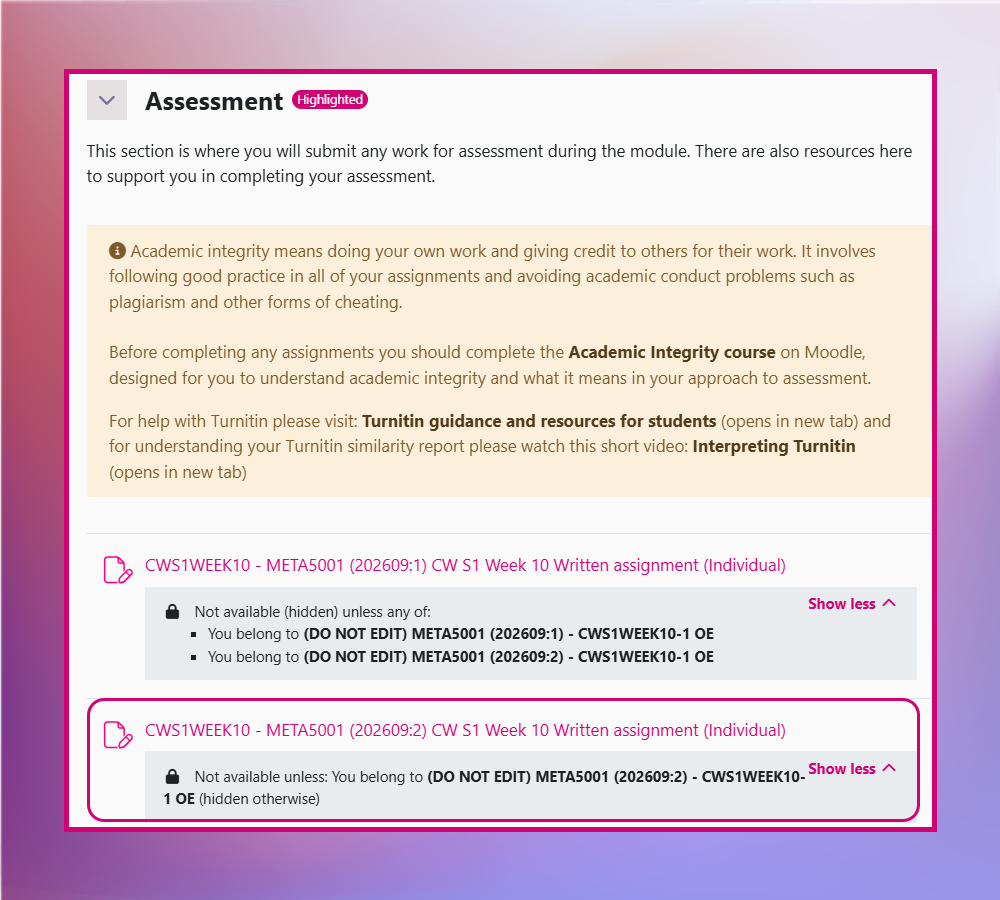
- Open the activity and select Settings
- From Edit Settings navigate to Restrict access.
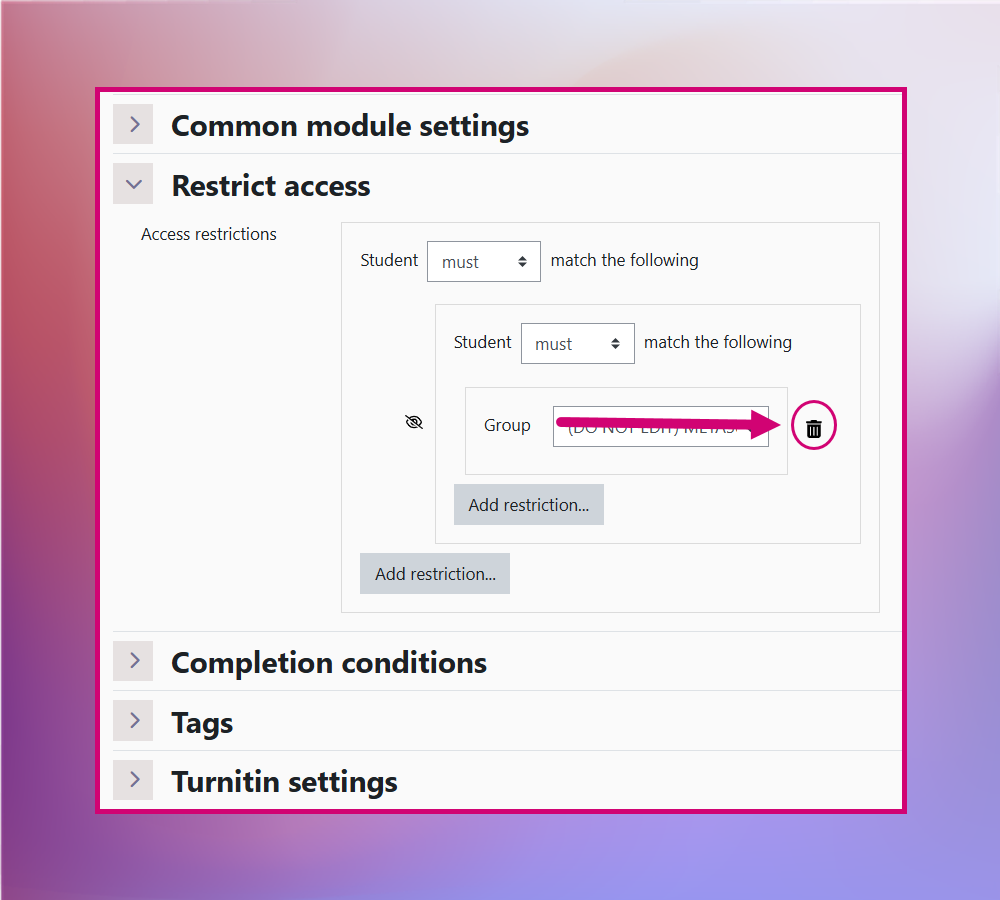
- Within the existing restriction set, select the Delete (Trash can) icon.
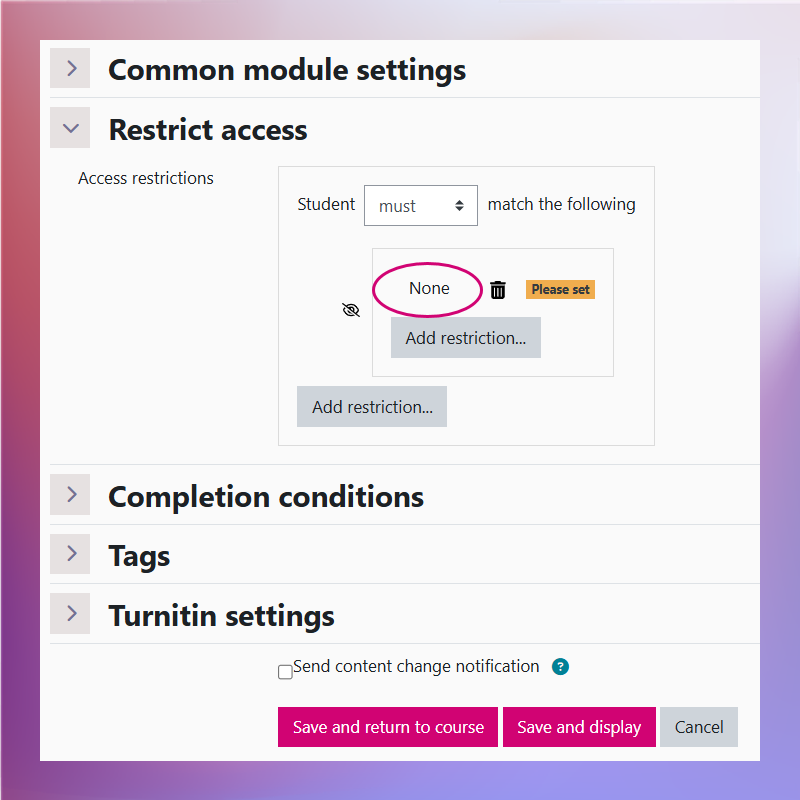
- Confirm that the Restrict access section now displays None.
- Click Save and return to course.
- Once you have removed the restriction, hide the ‘child’ Coursework activity. See How do I hide a Moodle activity from students?
If you require assistance for any part of this process please, contact the Digital Education team.