
If you see a large number of 100% similarity scores in a Coursework dropbox, the most common cause is that the draft (originality check) submission dropbox was configured incorrectly.
This typically occurs when the draft Turnitin assignment was set to Store Student Papers in the Standard repository instead of No repository. When this setting is used, students’ draft submissions are stored in Turnitin’s database and will later match against their own final submissions, resulting in 100% similarity scores. See: How do I ensure draft submissions avoid matches to final assignments?
If the draft dropbox was configured incorrectly, you can check that the match is to the student’s own draft submission and exclude it from the Similarity Report. Please follow the steps below.
Please note that an individual 100% match may also be caused by other factors. See: Other reasons why a submission may display a 100% similarity match.
How to confirm and exclude a draft match
Step 1: Identify the matching submission
For a submission showing a 100% match:
- Click the blue pencil icon to open Feedback Studio.
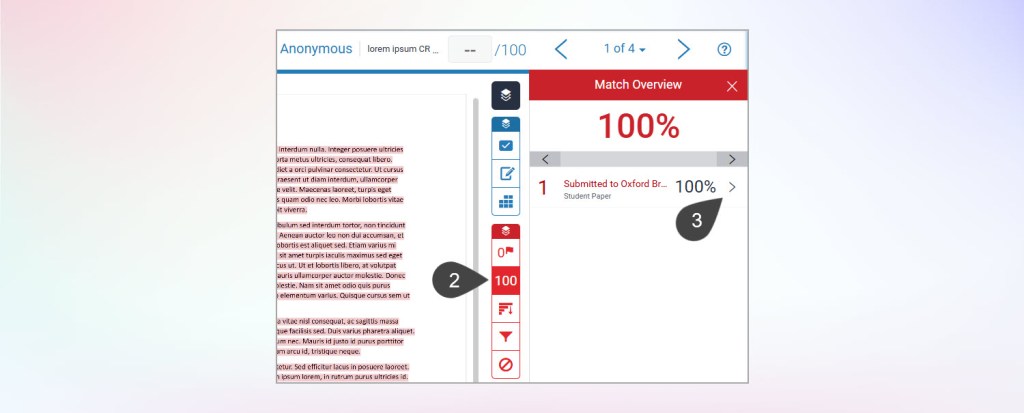
- Click the red ‘100’ similarity score in the Similarity toolbar on the right-hand side.
The Match Overview panel will open. - Select the arrow next to ‘Submitted to Oxford Br… 100%’ to expand the match details.
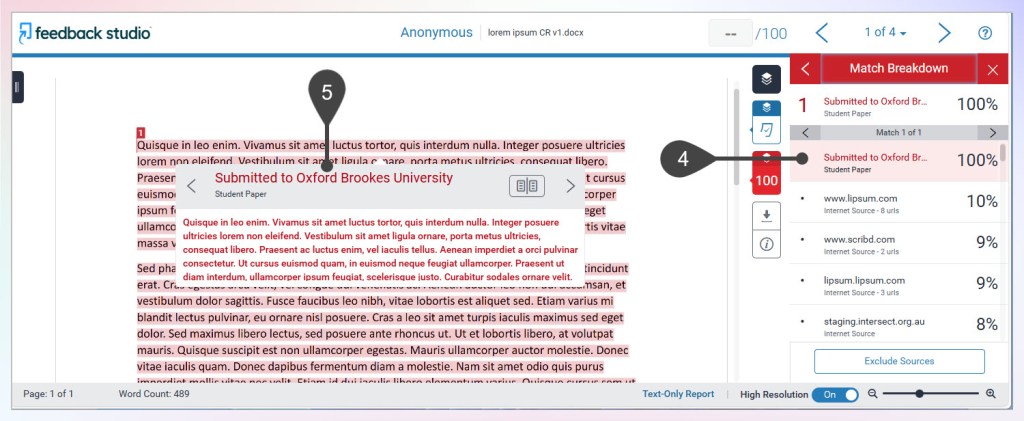
- Select the paper showing the 100% match.
- A popup window will appear. Click ‘Submitted to Oxford Brookes University‘ to open the matching paper in a new tab or window.
- In the newly opened window, click the information icon in the side panel.
- Copy or make a note of the Submission ID.
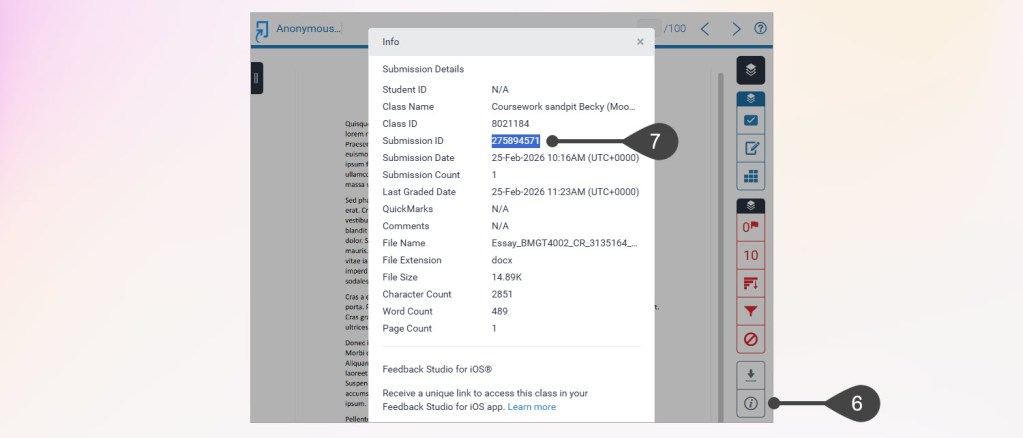
You can search for this Submission ID in the draft dropbox to confirm it is the student’s earlier draft submission. If the student has included their student ID in the title or cover page of both submissions, this can also help confirm the match.
Step 2: Exclude the source
- Return to the original Feedback Studio tab.
- In the Match Overview panel, click Exclude Sources at the bottom of the panel.
- Tick the checkbox next to the 100% matching source.
- Click Exclude at the bottom of the panel to confirm.
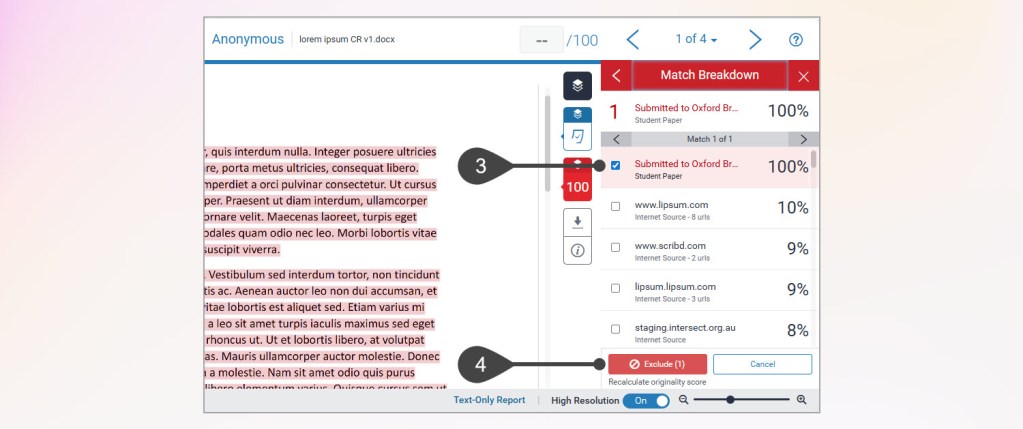
The Similarity Score will update automatically in Feedback Studio. Please note, sometimes there is delay before the updated score is reflected in the Coursework dropbox submissions list.
For further guidance on exclusions, see: Managing filters and exclusions in the Similarity Report (Turnitin Guide)
Other reasons why a submission may display a 100% similarity match
The student submitted to the wrong module
A student may have accidentally submitted their work to a different module. As a result, their current submission may match against that earlier submission.
Guidance: How do I remove a submission from the Turnitin database?
A potential breach of Academic Conduct regulations
In some cases, a 100% similarity score may indicate possible academic misconduct.
If you suspect a breach of Academic Conduct regulations, please follow the appropriate referral process.
Guidance: How do I flag a submission for plagiarism/refer it to SIRT?