
Webinar from 4th September (video with chapters): Recording for staff: What’s new in Moodle 4.5?
On Tuesday 5th August 2025, Moodle was upgraded to version 4.5. This version introduces a variety of improvements, including: a more streamlined look with new accessible activity icons, subsections, a quicker way to add content to your course, a new Moodle Board activity for Padlet-like activities and more.
The upgrade in numbers
version
new features
changes
Changes and improvements
Jump to: Highlights · Navigation · Course editing · Collaboration · Assessment · The Brookes VLE Template · More features
(click on images to enlarge)
Highlights
Streamlined look New
Click the arrows top right of the image for full screen, then drag the slider left and right to see before and after. Press Esc to exit.
Moodle 4 has a cleaner, modern look. Activities and sections are clearly defined.
- Smaller activity icons and content arranged to take up less space.
- Updated activity icons use an accessible colour palette.
- File icons will clearly display the file type, for example, DOC, PDF, PPT.
Quickly create content New

You can now insert an activity or resource anywhere in a section, not just at the end. With editing turned on, hover your mouse between two activities to show the ‘plus’ icon.
Better section options New

- You can now duplicate a section and all the content within it. Note: the five standard templated sections at the top of a course should never be duplicated.
- There is now a permalink for easy linking to an individual section.
Subsections help learners focus. New

You can now add subsections within a section.
Caution: To work effectively, subsections must be used sparingly. Please read our guidance: How do I use subsections effectively?
Navigation
Course index collapse/expand all New

There is a new kebab menu beside the course title in the course index, so you can now collapse or expand all sections from the course index in just one action.
Collapsing and expanding sections in the index won’t affect section status in the course main content.
Text and Media area name New
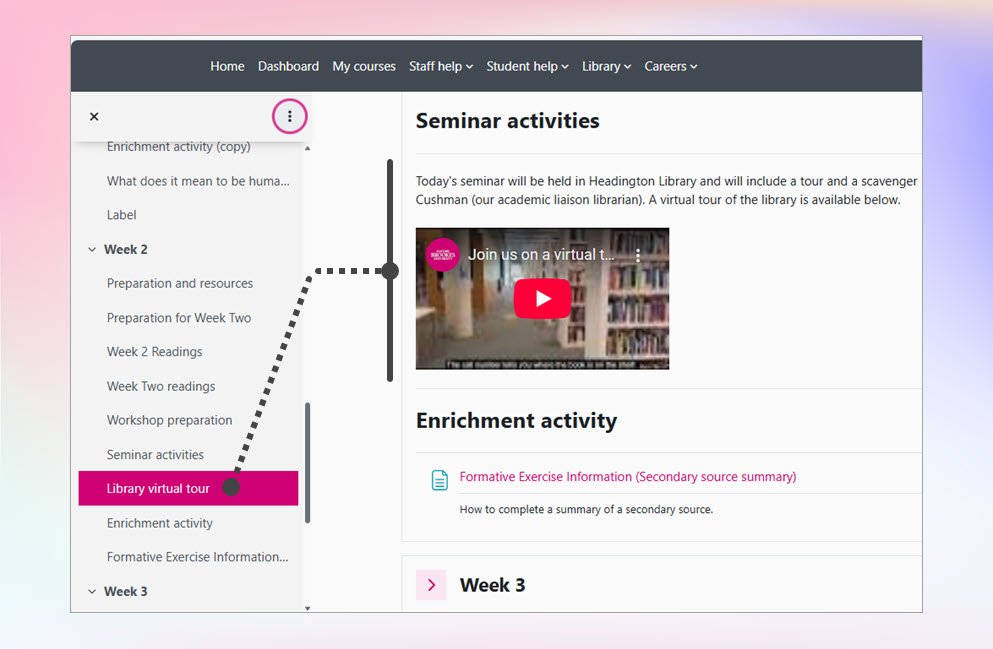
Text and media areas (previously called Labels) can now have names which display in the Course index.
Tip: Please check the settings of existing Text and media areas and make sure they are named appropriately.
Single section page New

By default, sections will still be collapsible on the course page. However, if you choose the “one section per page” setting, the course page will display differently, allowing you to concentrate on content within a single section. To view a section in its own page:
- Click the section heading in the course index.
- Click the section heading on the course page
- With edit mode enabled, teachers click section settings to ‘View’ a single section.
Book navigation improvement

As the reader reads and scrolls the page, floating previous/next buttons are always there to allow the user to navigate to the next page. This reduces the need to scroll to the top or bottom, providing a much better user experience.
Course editing
Enable bulk editing New

Click the Bulk edit option available from the top-right of the Course homepage. You can then select multiple items and choose to Bulk delete, move, duplicate, hide or change visibility from the footer.
TinyMCE is the default editor
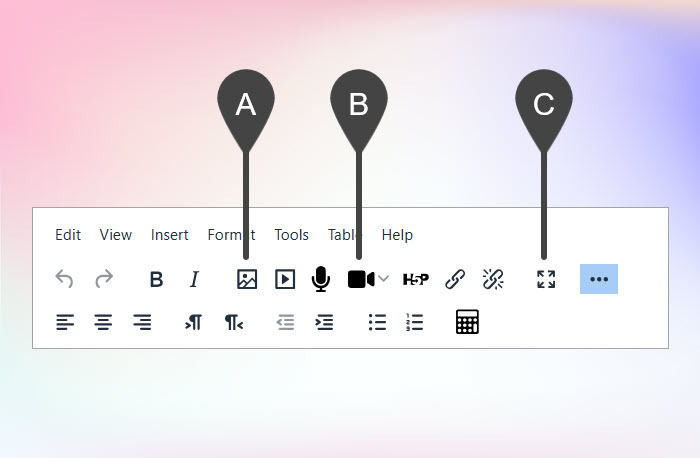
- Image handling is more streamlined; drag and drop to insert an image.
- A new option allows users to create a short screen recording.
- A full screen button makes editing easier.
Quick access to settings New
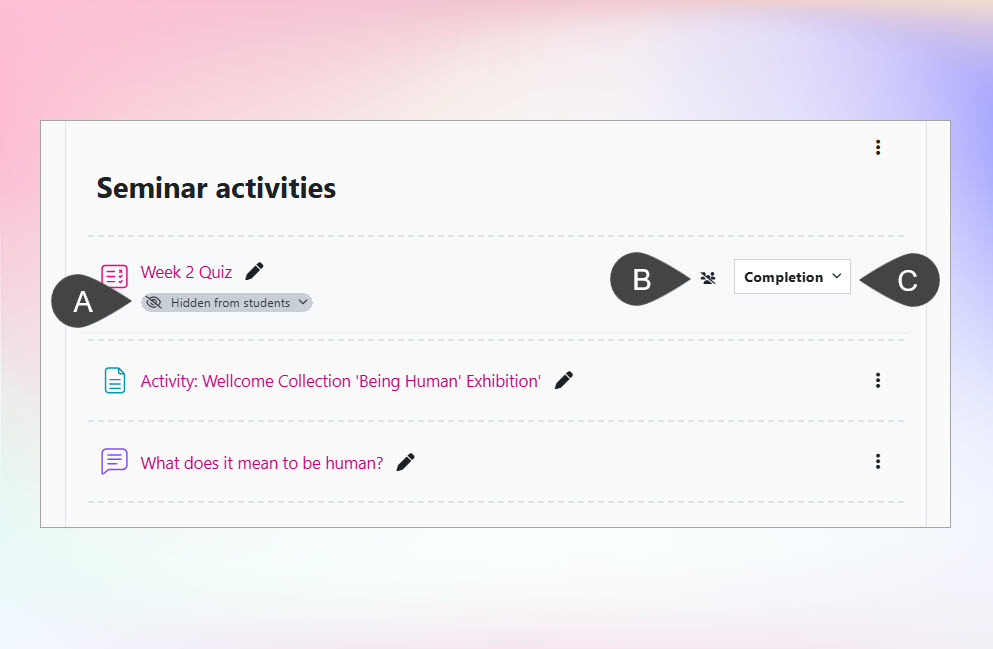
Activities now have edit links to go directly to:
- Access restrictions.
- Group mode settings
- Completion criteria
Collaboration
Moodle Board New
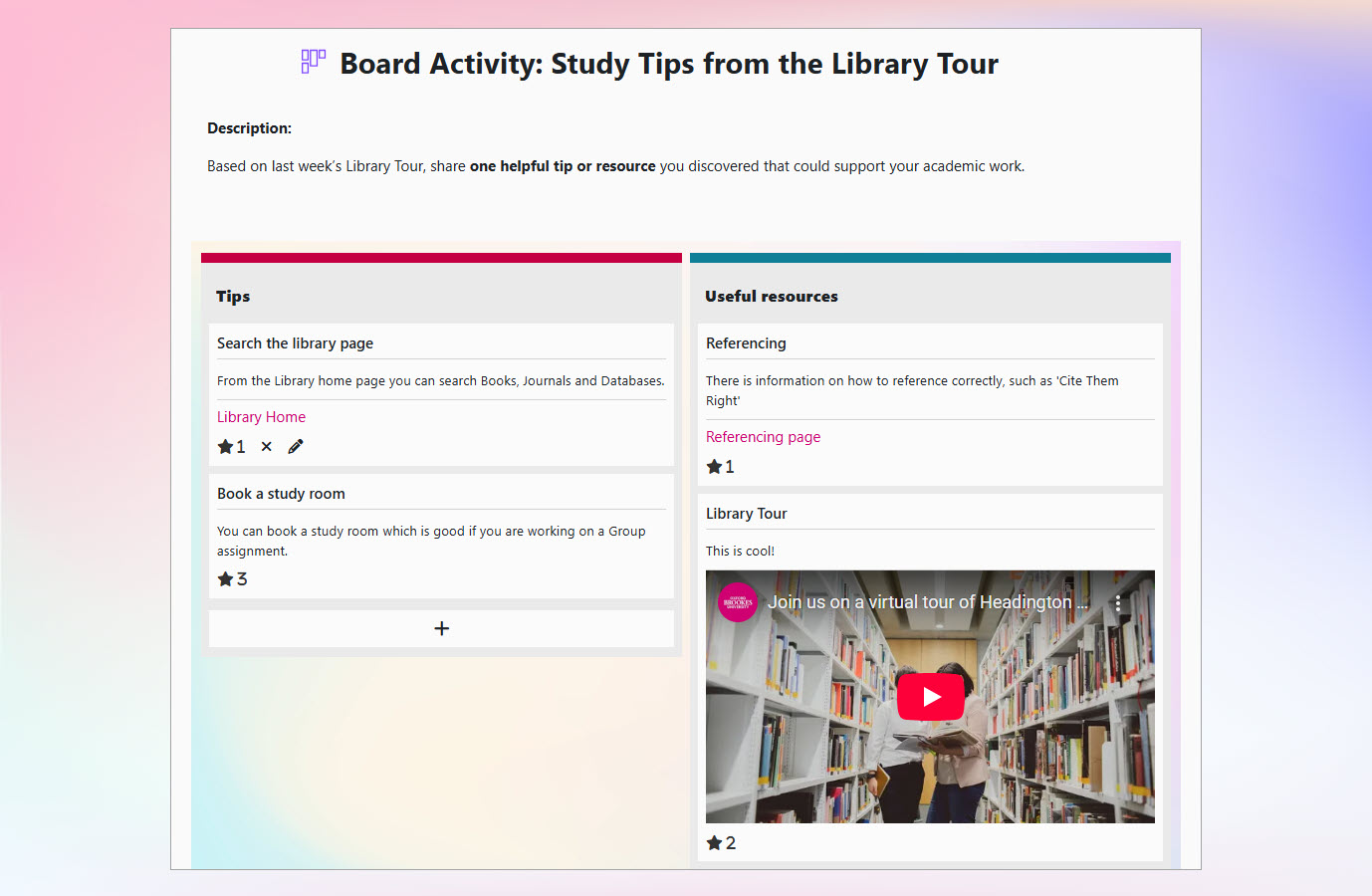
The board activity allows students to engage in discussions and thought-sharing, via a post-it board. Boards are anonymous.
Students can post text, images, URL links, or embedded YouTube videos.
Boards may be used for:
- Anonymous Q&A
- Introductions / icebreakers
- Crowdsourcing content
Learn more: How do I create a Moodle Board?
Easily post to all groups
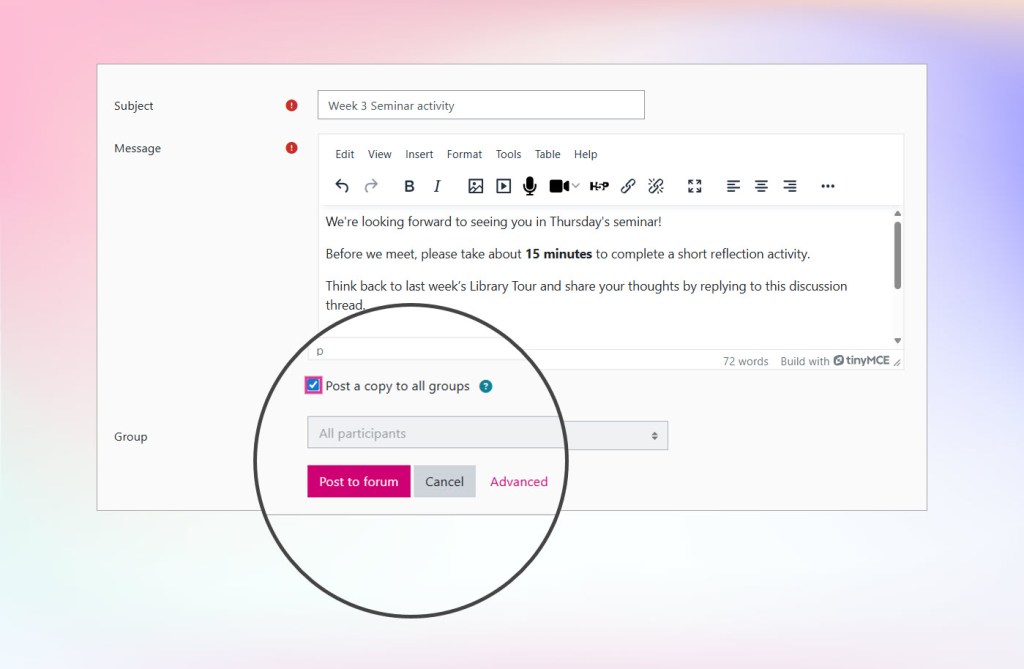
The Post a copy to all groups is easily available when adding a forum post. You no longer need to expand the Advanced options to find it.
Assessment
Coursework New
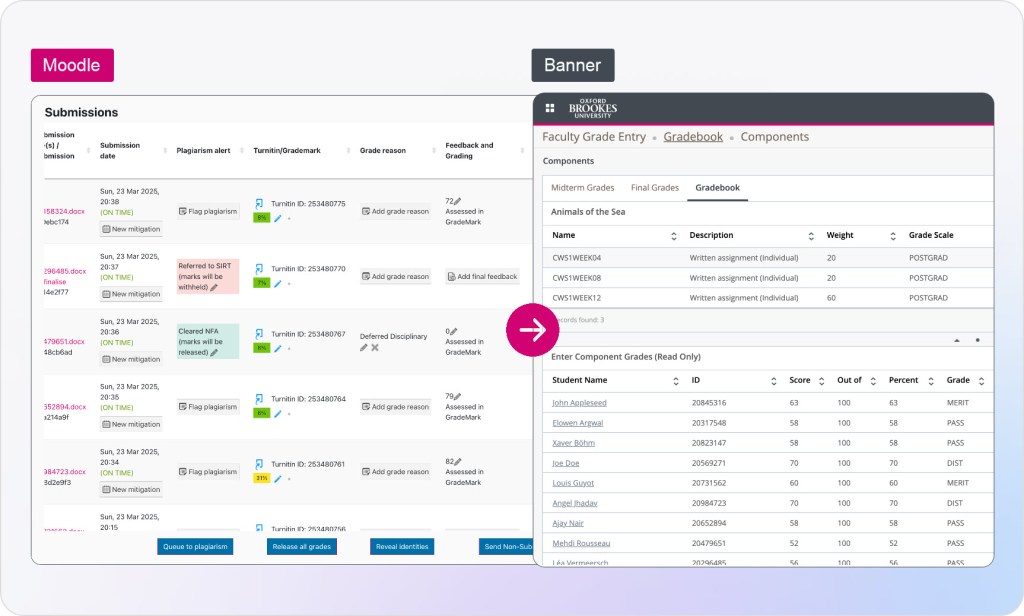
The new Coursework tool allows for automated mark transfer to Banner, streamlined extensions, one submission dropbox for all students, Turnitin integration and more.
For more information on the benefits and to access training resources, please visit the Moodle Coursework Google Site.
Coursework webinars will take place in September. Look out for details in the Staff Updates.
Quiz improvements

Quiz improvements
Quiz autosave reassures users that it is working by displaying “Last saved time” in the Quiz navigation.
Reopen attempts: It is now possible to get a “Never submitted” quiz attempt back to the “In progress” state.
The Question bank now has improved searching and filtering. You can hide, remove or resize columns in the Question bank, giving you flexibility to customise your own views.
Moodle 4.5 on mobile
Accessing Moodle via a mobile browser
Moodle has been developed to be mobile-friendly on devices using a browser such as Chrome, Safari, or Firefox, which means that it resizes appropriately and adapts to different screen sizes. Therefore, Moodle 4.5 works well on mobile when using a browser on iOS or Android.
The Brookes VLE Template
What is it?
The University VLE template was introduced in 2023. All academic Moodle modules continue to use the template which provides accessibility improvements, consistency and standardises layout, number of core sections and labelling for academic Moodle courses.
Guidance for staff
We have published:
- guidance for teaching staff on how to make best use of the template when building their Moodle courses.
- an exemplar Moodle course (self-enrolment) that showcases the template and good practice when structuring a course.
More features
If you are a recent member of staff then we recommend you also check out the features introduced in our previous upgrade: What’s new in Moodle 4 for staff? (Summer 2023 Upgrade) – Digital Education Support at Brookes