
There are two main workflows for the collecting and marking of Group work. Each has its own advantages and disadvantages. To find out which approach suits your assessment, please visit: How do I set up and mark a Group work Assessment?
The following article describes Workflow 1: Moodle Assignment (Group submission)
This guide is for Module Leaders who need to set up group assessments where each student can receive an individual mark and feedback, even though the submission is made on behalf of a group.
Coursework activities are created automatically from assessment data held in Banner. These default group Coursework activities assume that all group members receive the same mark. If your module requires individual grading within a group assessment, you can manage this using a Moodle Assignment activity, as outlined below.
Overview
If you have a Group assessment component in Banner then a corresponding Group Coursework activity will be automatically created in the Assessment section of your Moodle module.
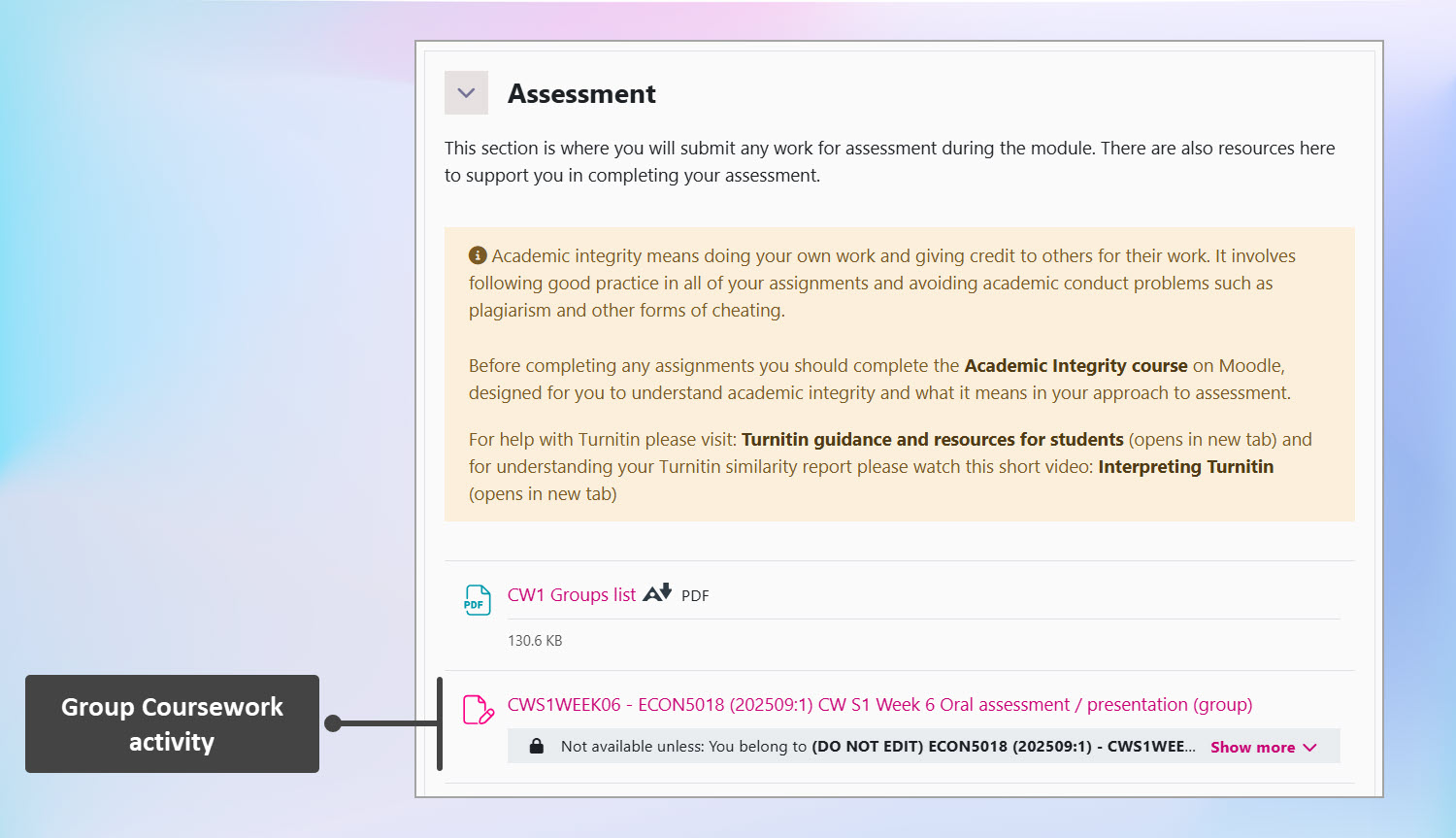
Important: Keep the automatically deployed Coursework dropbox in your module but hide it from students. Once all grading is complete you will need to manually transfer your final marks either directly to Banner or to the deployed Coursework activity.
Workflow 1: One student submits on behalf of the group and members can receive individualised marks and feedback
If you require the ability to give individual marks and feedback within a group submission, you can manage this using a Moodle Assignment activity.
If, having read the workflow below you don’t feel it meets your assessment requirements then please contact the Digital Education team, digitaleducation@brookes.ac.uk, who can help you set up a suitable submission point for your Group assessment.
Note: Moodle Assignments do not include Turnitin integration. This means, you cannot check for plagiarism, and students will not receive an Originality Report. If you need plagiarism checking for this assessment, please refer to our article: How do I set up and mark a Group work Assessment? which describes an alternative Workflow 2 where Turnitin can be enabled.
Create a Moodle Assignment
To set up an assignment dropbox:
- Go to your Moodle course and turn editing on.
- Navigate to the Assessment section of your course
- Click the ‘Add content’ plus + icon and choose Activity or resource.
- From the activity chooser select Assignment (first choice) and click Add.
- Configure the settings as outlined below.
Moodle Assignment settings required for group work
Configure the settings as needed, In particular, make sure the following settings have been configured:
| General | |
| Assignment name | Give a title to your assignment. |
| Description | Description is an optional field, but it’s good practice to include useful information for your students, e.g. the deadline of the submission, requirements for file names of the submissions. |
| Availability | |
| Allow submissions from | The date when your students will be able to start submitting their work. |
| Due date | The deadline for submissions. |
| Group settings | |
| Students submit in groups | Set to Yes |
| Require group to make submission | Set to Yes |
| Require all group members to submit | Set to No |
| Grouping for student groups | From the dropdown choose the Grouping ‘Coursework Joint Submission Groups’ |
| Grade | |
| Anonymous submissions | Set to No (so that you can identify individual students) |
| Feedback Types | |
| Feedback types | Tick the following options: – Feedback comments – Annotate PDF – this is required if you wish to preview the student submission when marking. – Feedback files (optional) |
When you are finished configuring settings, scroll down and click Save and return to course.
EC and ISP extensions
If necessary, an ‘override’ can be used to apply an EC or ISP extension to a group. See: How do I add extensions to a Moodle Assignment?
Creating the groups and configure the Grouping
Create the Groups
The process of adding students to groups hasn’t changed, therefore you will need to add students to groups manually (or auto-create) as you may have done previously. How do I add students to groups?
Configure the Grouping
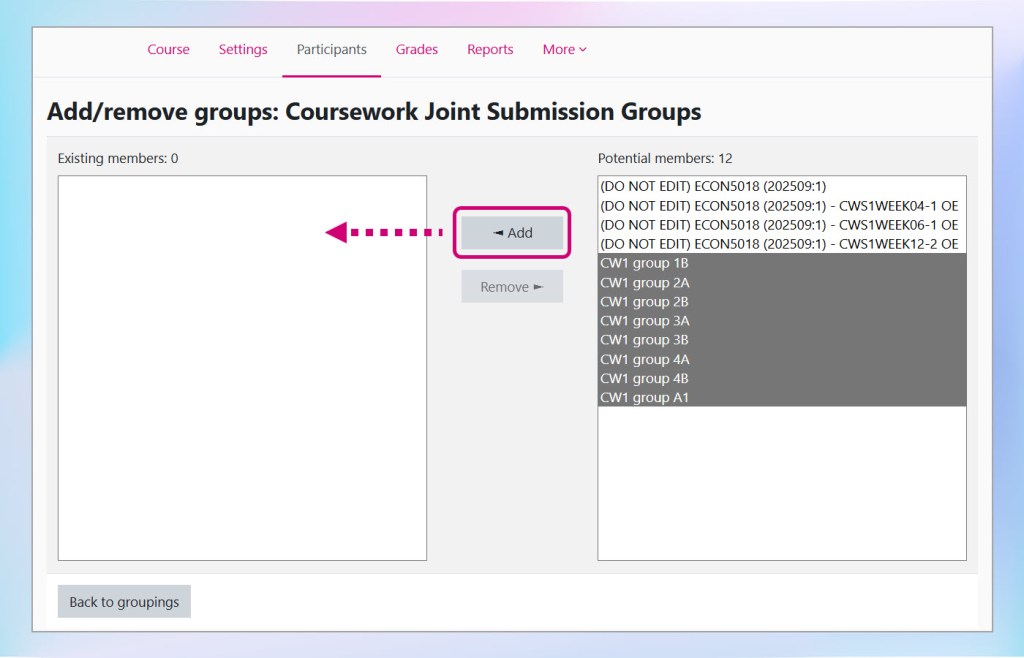
Next, you will add the Groups to the Grouping called Coursework Joint Submission Groups.
- Click on Participants at the top in contextual navigation.
- Click the Enrolled users dropdown menu.
- Click Groupings.
- Find the grouping ‘Coursework Joint Submission Groups’ in the list (this grouping should have already been created for you).
- On the right side, click the circular person ‘Show groups in grouping’ icon.
- In the next screen, you will see the groups you created in the right-hand side box.
- Select only the groups that are relevant to the group assessment.
- Once you have selected the groups you need, click Add in the middle.
- The groups will appear in the left-hand side box and are automatically saved once added.
Giving marks and feedback
When marking, the mark and feedback will, by default, apply to all members of the group. You can, however, edit the feedback and mark for an individual within the group. This will be necessary when assessing how far each student has met the group work learning outcomes, for example, if one student contributed significantly more or less than others.
If you need to give individual feedback, please follow the steps very carefully, as outlined in the article: How do I mark group work in a Moodle Assignment.
Final steps – Transfer of grades
Once all grading is complete you will need to manually transfer your final marks either directly to Banner or to the deployed Coursework activity.
Need further help?
If you’re unsure which workflow best suits your assessment, or you have any other questions, please contact the Digital Education team, digitaleducation@brookes.ac.uk, for further advice.