All summative Coursework activities will be created for you automatically. This will include deploying a summative Coursework activity for each gradeable component you have attached to that module in the Banner Student Record System. Yet, if you do use metalinks to link one or more courses to a main ‘parent’ course (for example courses that are held on different campuses) there are a few further considerations.
How will the summative Coursework activities be deployed to metalinked courses?
Summative Coursework activities (such as file submission dropboxes) will be deployed to your Moodle course based on how many gradable assessment components are listed in Banner for each individual module run. If you have two gradable assessment components listed in Banner (for example. a Written assignment 50% and a Portfolio 50%), then two Coursework activities will automatically be deployed into each of your Moodle courses. The Coursework activities will have automatic titles that designate which week the assessment is due, which course it is deployed for and the type of assessment it is, such as CWS1WEEK12 – EXMP6001 (202509:1) CW S1 Week 12 Written assignment (Individual).
In this example, the activity title refers to:
- CWS1WEEK12 and CW S1 Week 12: The type of assessment it is (coursework), the term (semester 1), the week the assessment is due (Week 12)
- EXMP6001 (202509:1): The module short name which includes the course code, date and month of the run and the number of the run.
- This will be important in metalinked courses as it is how you differentiate between dropboxes deployed for different modules.
- Written assignment (Individual): The assessment type of the component in Banner, which in this case refers to a file submission.
How should I metalink the Moodle courses?
First, you need to choose which of the courses you are making the ‘parent’ course. Usually the module run titled with a suffix of (Semester 1 2025-2026:1[OBO]) is the main course and you could have the other ‘child’ courses metalinked to it. In the title of the ‘child’ courses, there may be further numbered ‘sections’ (Semester 1 2025-2026:2[OBO]), a note that they are distance learning module (Semester 1 2025-2026:1[DL]) or a different campus code (Semester 1 2025-2026:2[OBS]). There is full guidance on how to metalink courses available in our documentation.
When should I metalink the Moodle courses?
Ideally, you should metalink the Moodle courses before the Coursework activities are deployed and before you roll over any content into the ‘parent’ course. Once the main course has all related ‘child’ courses metalinked to it, then you can then roll over your content. You can also leave the ‘child’ courses empty and hidden as the enrolments will now be contained within one course. You should be careful to follow the mandatory VLE teaching template for Moodle courses when rolling over content as the Coursework activities will be deployed to the relevant section, ‘Assessment,’ based on that template. Any deviation from the template may cause your Coursework activities to deploy incorrectly.
Will I need to create groups for the students to submit?
All submission groups are created automatically based on the components that are listed in Banner. These should not be edited, deleted or altered in any way. The group names are explicit as to what component they are connected to and also whether this is an original mark or resit.
The group names will look similar and give key information, such as (DO NOT EDIT) EXMP6001 (202509:1) – CWS1WEEK12-1 OE.
In this example, the group title refers to:
- (DO NOT EDIT): A reminder that the group should not be edited in any way.
- EXMP6001 (202509:1): The module short name which includes the course code, date and month of the run and the number of the run.
- CWS1WEEK12-1: The type of assessment it is (coursework), the term (semester 1), the week the assessment is due (Week 12), the number of the component in Banner (1)
- OE: What type of mark is being uploaded (i.e. OE is Original Entry)
If you would like to have a separate dropbox for each metalinked course:
There will be a summative Coursework activity deployed for each gradeable component listed in Banner for each module run. Therefore, by default, for metalinked Moodle courses there will be an activity or set of activities deployed for every module that is connected to the main course. If for example you have metalinked a second module run to the main module, you will have a minimum of two Coursework activities deployed in total (i.e. one assessment submission dropboxes per module run). These Coursework activities are restricted to the ‘group’ of students that are enrolled in Banner for those module runs and these groups are automatically generated in Moodle, therefore students will be only able to see their own submission point.
If you would like to have one submission point for all of your students:
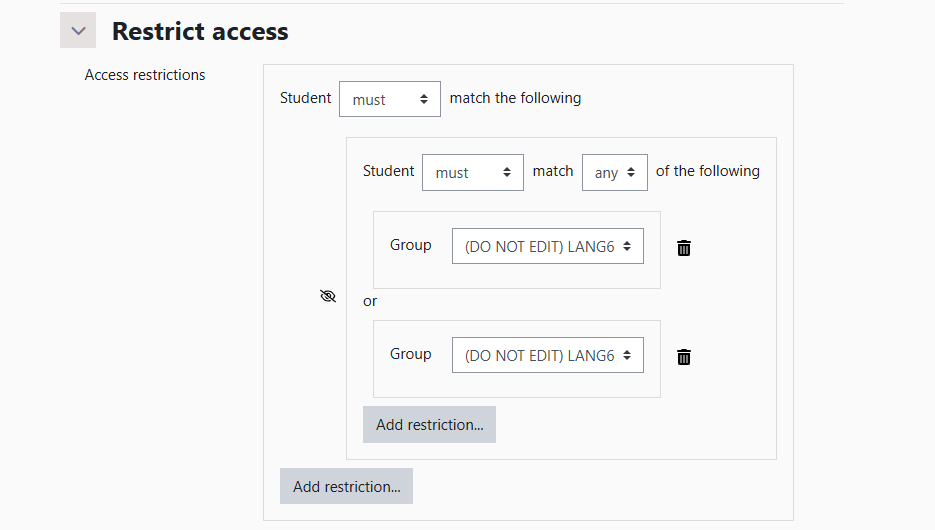
You can designate one of the summative Coursework activities that were created as the ‘main’ submission point for that assessment by adding the other student groups from the metalinked courses to the access restrictions for that dropbox. This will add the other student ‘groups’ to this ‘main’ activity and allow them to see and submit that that activity. The unused Coursework activity can be either hidden or deleted.
- Identify which of the activities you would like to make the ‘main’ submission point by locating the correctly titled Coursework activity, such as: CWS1WEEK12 – EXMP6001 (202509:1) CW S1 Week 12 Written assignment (Individual).
- Go to Settings
- Navigate to ‘Restrict access’ and then Access restrictions.
- In the same access restriction set that is automatically deployed (i.e. Student must match the following), click ‘Add restriction’.
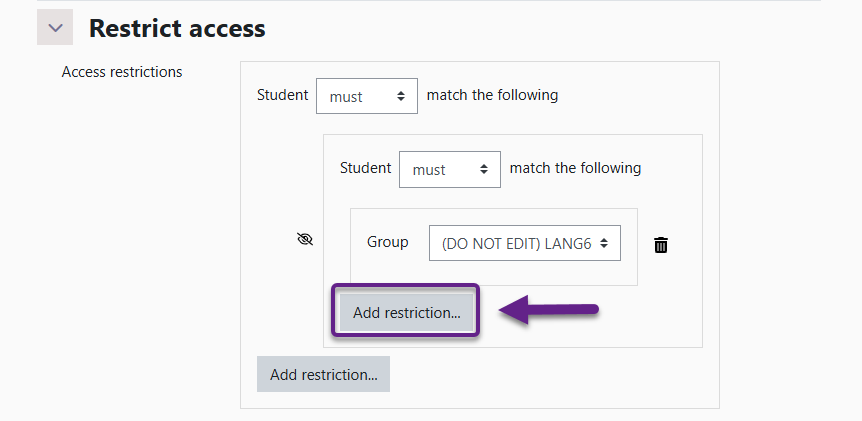
- From the list, select ‘Group’
- From the dropdown menu, select the other ‘child’ groups from the metalinked courses.
- Once all are selected, the ‘Access restrictions’ will read ‘Student must match any the following’ and each group’s restriction will be separated by or, which will ensure all of the metalinked groups will be able to see and submit to the activity.
- At the bottom of the page, select ‘Save and return to course’