All Coursework activities and assessment submission dropboxes will be created for you automatically. You do not need to create summative assessment dropboxes for event assessments in Moodle, as they also will be created for you automatically at the beginning of each semester.
All Coursework activities are deployed to accept individual file submissions and integrate with Turnitin.
If you have an event assessment that is non-written (e.g. an oral assessment or presentation) and you don’t need students to submit anything in support of the assessment, you can change the dropbox settings (including disabling Turnitin) so that students are not required to submit a file – refer to the steps below.
Another alternative use of event Coursework activities is to manage grades for summative assessments that are a result of one or multiple Moodle quizzes, supplementary activities or other collected submisssions or works.
Setting up the activity
To set up a Coursework activity for an event assessment, go to the Coursework activity:
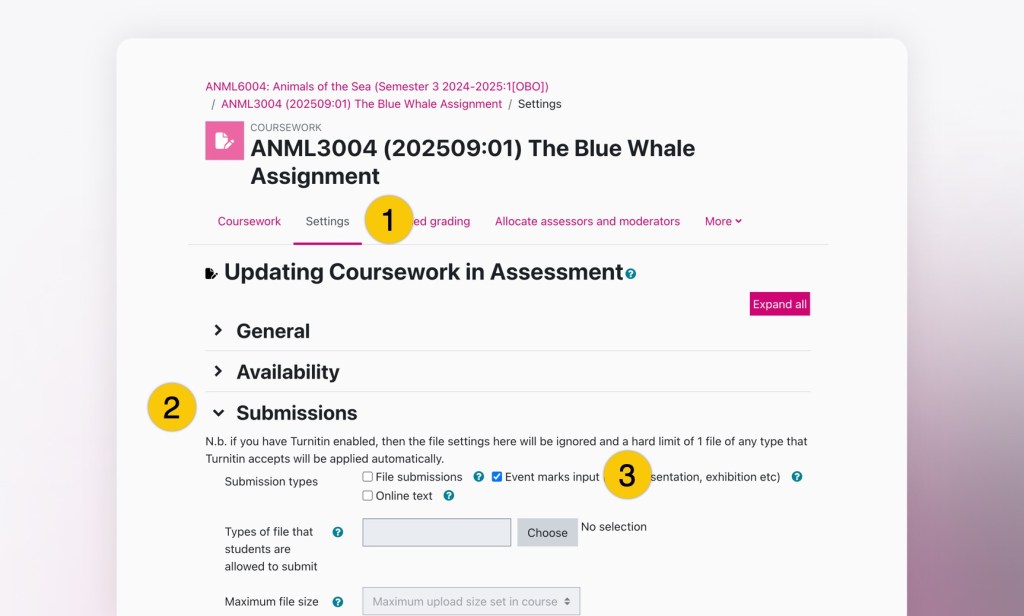
- Click Settings at the top.
- Scroll down to the ‘Submissions‘ section.
- Under ‘Submission types’ tick the box ‘Event marks input (oral, presentation, exhibition etc)‘ and untick the box ‘File submissions’.
If you require students to submit a file as part of their presentation, you should leave the default setting ‘File submissions’ ticked. You cannot have both of these boxes ticked and must choose one or the other.
- Under ‘Blind Marking’ select ‘No‘ to disable anonymous marking.
- Under ‘Turnitin setttings’ select ‘No‘ for ‘Enable Turnitin‘ in order to disable Turnitin.
- Click ‘Save and Return to Course‘ or ‘Save and display‘ to save your changes.
Note: When using an event assessment Coursework activity, you will not be able to mark anonymously or use Grademark to mark the submissions as both Blind marking and Turnitin must be disabled for this assessment type.
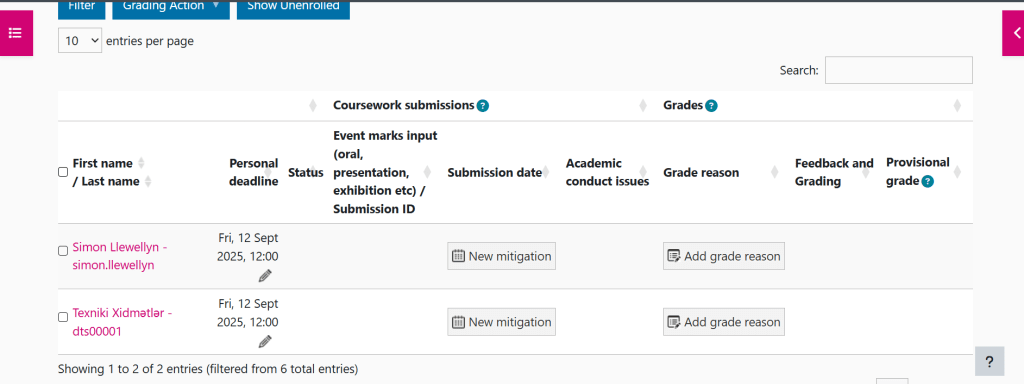
When the event Coursework is correctly set up, the dropbox columns will have different subheadings, including ‘Event marks input’ for example, but will otherwise have the same general sections for identifying submissions and inputting marks and feedback. There is a different workflow for marking and feedback as you will need to set the ‘Event date’ in order to indicate that a student has submitted.
Please see our documentation on ‘How to mark event Courseworks‘ for more information.