
Most Coursework activities are set up to integrate with Turnitin, except for those that require a grade but do not require students to upload a file (for example, oral assessments or presentations). Depending on the nature of your assessment, you may need to enable or disable Turnitin in the Coursework settings. This must be configured before students begin submitting.
Related guidance on settings:
Which dropbox settings do I need to check in Coursework dropboxes?
How do I set up Coursework activities and assessment dropboxes if I don’t need to use Turnitin?
Marking with Turnitin
If the Coursework activity integrates with Turnitin you can mark student work using Turnitin’s Feedback Studio:
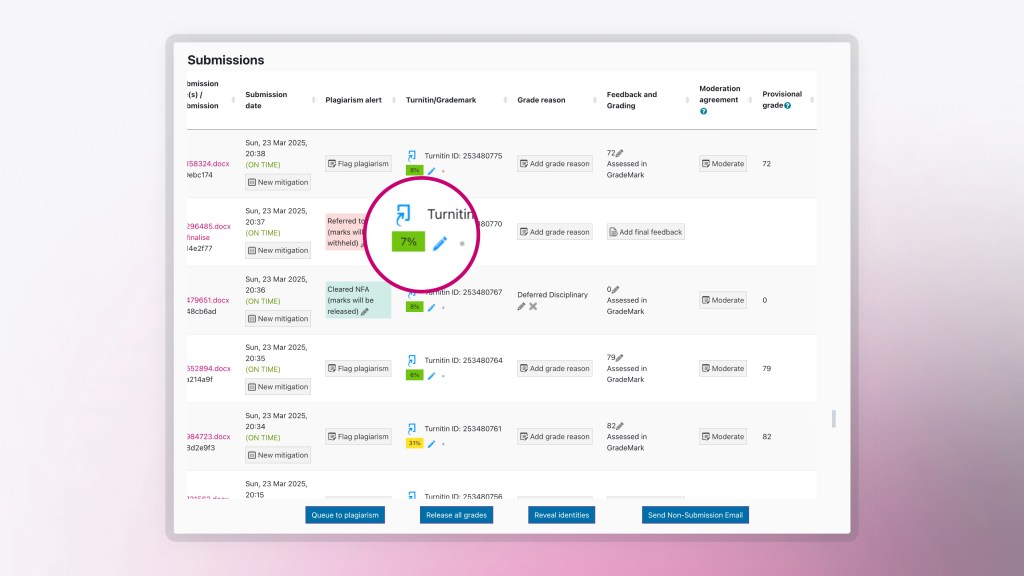
- Look for the Turnitin/GradeMark column in the dropbox.
- Click the blue pencil icon for the submission you want to mark. This will open the submission in Turnitin Feedback Studio.
Coursework’s integration with Turnitin only allows one submission at a time to be opened in Feedback Studio.
- Use Feedback Studio to add or edit grades and feedback. Once you have finished marking that submission, close Feedback Studio to return to the list of submissions.
- The grade you entered in Feedback Studio should then appear in the Feedback and Grading column, along with the text ‘Assessed in GradeMark’.
If the grade does not appear, please refer to the following FAQ: Why is the mark I have entered in Turnitin Feedback Studio not immediately appearing in the ‘Feedback and Grading’ column in the Coursework dropbox?
- To mark another submission, repeat the steps above.
Don’t use the next/previous arrows in Feedback Studio to move between submissions
We strongly recommend not using the next/previous arrows within Feedback Studio to move between submissions (as you may have done previously), and refer you to the guidance immediately above on how to mark in Coursework.
Using the arrows to navigate between submissions may result in markers adding grades and feedback to an earlier version of a submission – we have noticed some unpredictable behaviour particularly where students have resubmitted work.
The list of submissions in Coursework provides the definitive link to a student’s final submission and so each submission should be opened directly from the list of submissions page in Coursework.
A note about Turnitin and the ‘Feedback and Grading’ and ‘Grade Reason’ columns
If you are marking in Turnitin Feedback Studio, there is no need to add any feedback in the Feedback and Grading column. When marks and feedback are released, students will see a link to Turnitin Feedback Studio, and that is where they will view all of their feedback.
The ‘Grade Reason’ column should only be used for students that have received a 0 (zero) mark for an assessment for any reason other than failing the assessment. More information on using the ‘Grade Reason’ column.
Marking late (after grades and feedback have been released to students)
Occasionally, you may need to mark a submission after grades and feedback have been released to the rest of the cohort. For example, when a student has been permitted to submit late. In these situations, it is essential to follow the steps below when using Turnitin Feedback Studio:
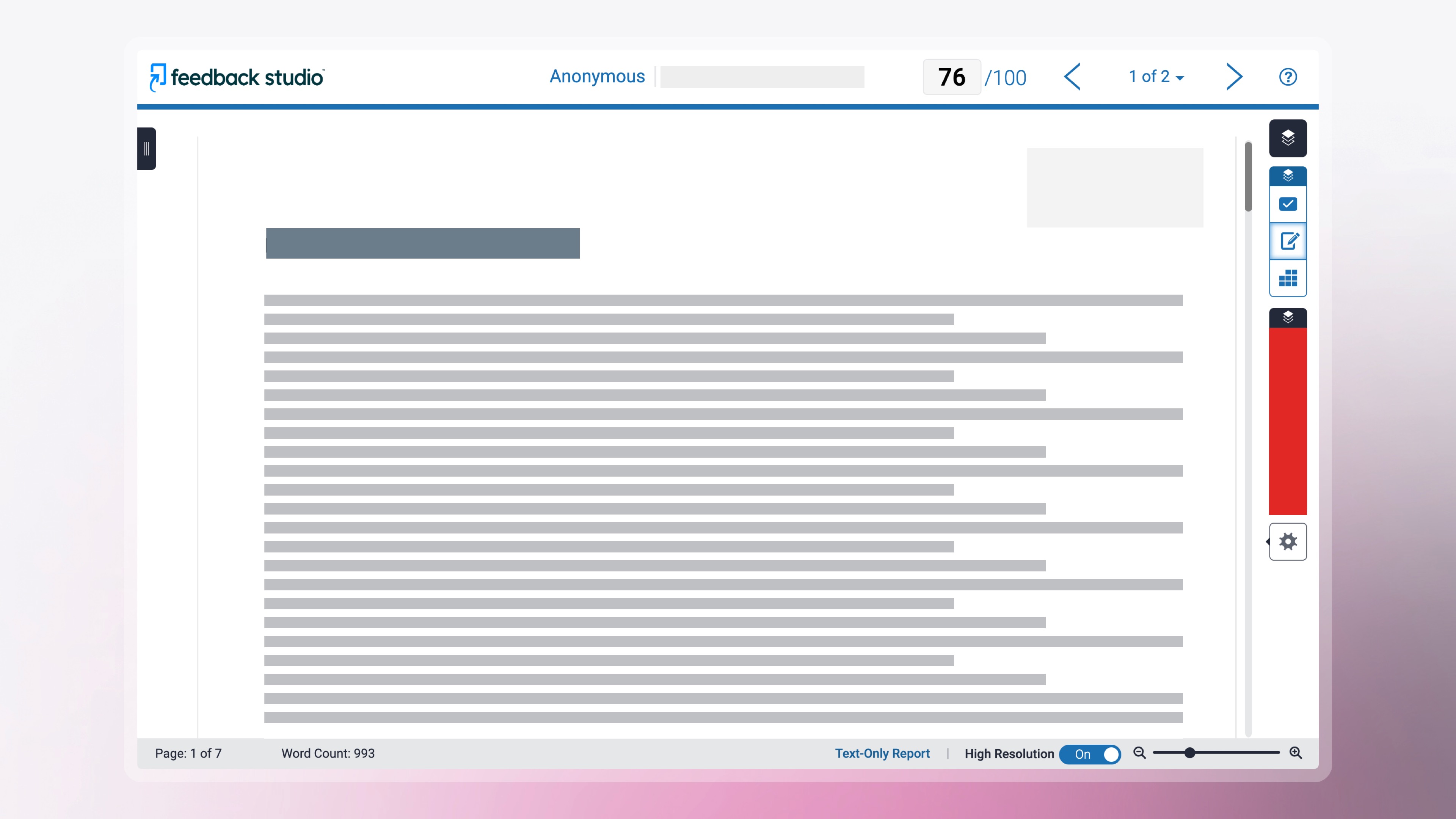
- Do not enter the grade in the top-right grade box in Turnitin Feedback Studio. Doing so will release the grade and feedback to the student, even though their work is still in the process of being marked.
- Instead, enter the grade in the Feedback Summary section within Feedback Studio.
- When you are ready for the late-marked student to receive their grade and feedback, return to Feedback Studio and add the grade in the top-right grade box for that student. This will then release their feedback appropriately.
(click on images to enlarge)
Do (when marking late)

Don’t (when marking late)
Marking without Turnitin
If you are not using Turnitin Feedback Studio to mark, then you use Coursework’s own marking tools.
When submissions are ready for marking the ‘Status’ column will state ‘Ready to Grade‘. To start marking:
- Click ‘Add final feedback‘ under the Feedback and grading column.
If you are marking without Turnitin, you won’t be able to preview the student submission inside Moodle. You will need to download the submitted file on your computer and open it.
- Next to Select Grade Reason, leave the default selection ‘Not Specified’ for all submissions that will be marked. A Grade Reason should only be selected for students that have received a 0 (zero) mark for the assessment for any reason other than failing the assessment. More information on using the ‘Grade Reason’ column.
- There are two ways to move to a another submission:
- At the top of the screen click the pink arrows to navigate between submissions.
- At the top of the screen click ‘Return to coursework page‘ to return to the submissions page and choose another submission.
- The Status column will now read ‘Graded‘ for the submission you just marked.
Further guidance on marking: Marking – Digital Education Support at Brookes