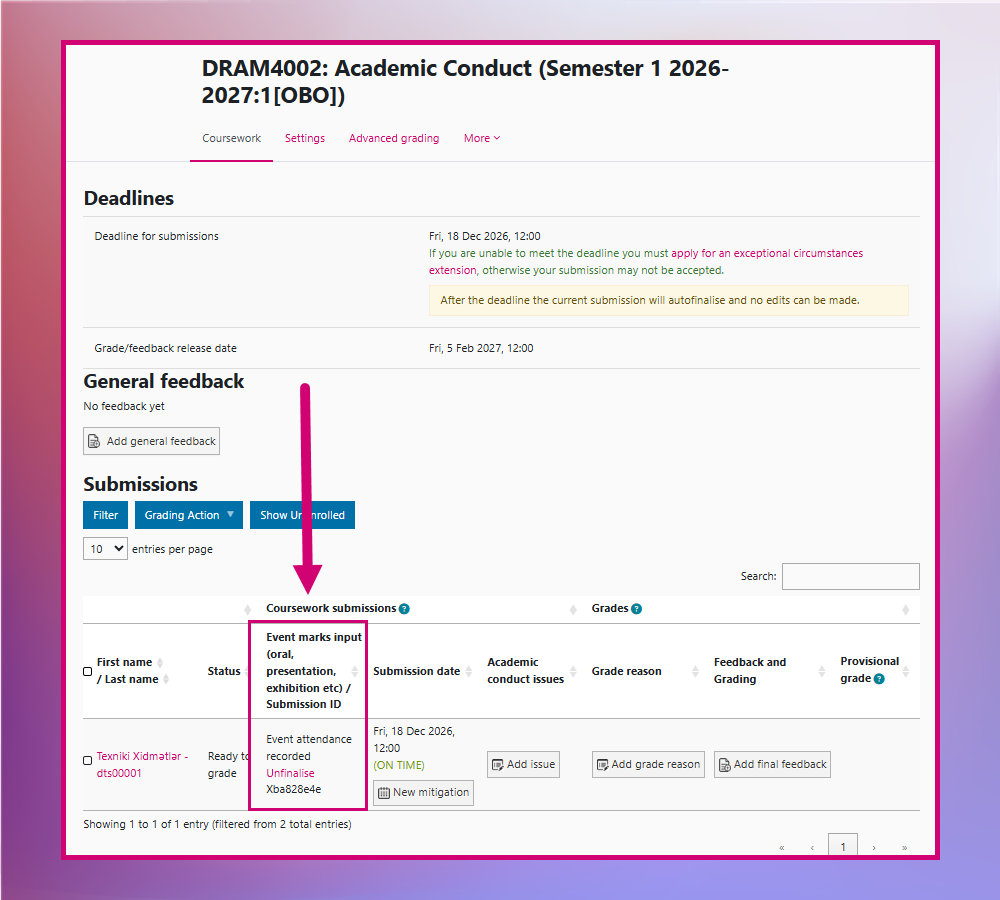
Event Courseworks, that can be used for assessment that requires a grade but not a submission from students, have a different submission, marking and feedback procedure. First, you need to set up the event Coursework correctly. Then, you will be able to use the Coursework for different summative assessment types.
Set the ‘Event date’ to enable you to ‘Add final feedback’
When a Coursework activity is set up to not require a student to submit a file, you will instead need to allocate an ‘Event date‘ for when the student has completed the performance, presentation or other alternative activity or work. Before you set an ‘Event date’ the Feedback and Grading column will be empty. Note: the ‘Event date’ is separate from the assessment deadline and can be set at any time.

When you set the ‘Event date‘ choose a date that is either on or before the assessment deadline so that the dropbox shows that the student submitted their assessment ‘on time’.
The ‘Event date’ could be:
- on the date they performed in the event or the date they presented their work.
- any date before the assessment deadline if you are recording a cumulative mark from a set of quizzes, participation activities or supplementary files.
It is important to set the ‘Event date’ because:
- the student must have a recorded ‘submission’ and a submission ID to use for marking and moderation.
- you must enable the ‘Add final feedback’ button in the Feedback and Grading column.
- if you do not set an ‘Event date’ for a student their submission will be recorded as ‘Not attempted’ when the deadline has passed and they will receive a 0 for their assessment when marks are queued for transfer to Banner.
Note: you will not be able to mark in Turnitin using Grademark as event Coursework activities must have Turnitin disabled.
How to set an ‘Event date’ before the submission deadline has passed
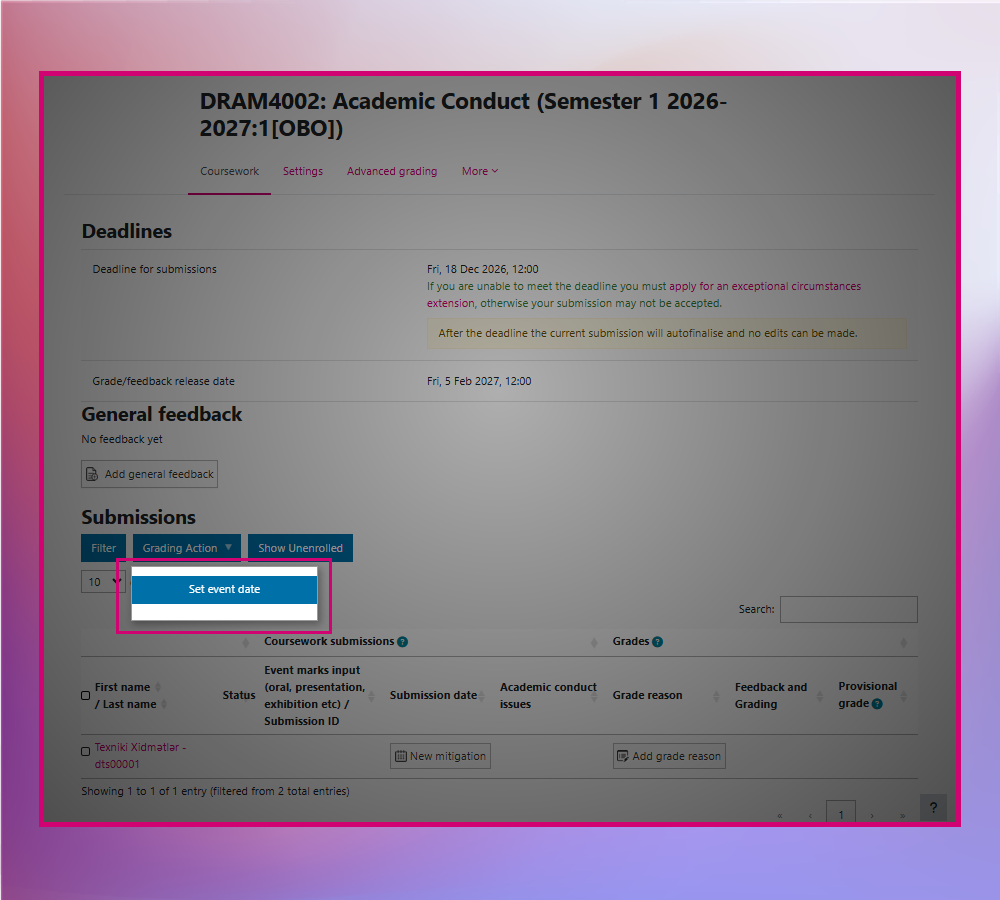
- From the main Coursework page, under Submissions select the blue ‘Grading Action‘ button.
- Click ‘Set event date‘ in the pop-up menu. Note, the rest of the screen will be inactive.
- In the ‘Set attendance date’ selection screen, select the student (or students) you would like to allocate an ‘Event date’ by ticking the box next to their name.
- You can select more than one student at a time.
- Tick the box at the top of the list to the left of ‘First name/Last name’ to select all.
- Click ‘Set date for selected‘ at the top of the choices list.

- In the next screen, under ‘Edit Event date for Multiple users’ set the correct date and time you want to allocate for the Event date.
- Click ‘Save changes‘ and you will be returned to the main Coursework page and each student you allocated an Event date to will now have ‘Event attendance recorded’ in the ‘Event marks input (oral, presentation, exhibition, etc) column and will have been given a submission ID.
- You should then proceed to add the mark and feedback by clicking ‘Add final feedback‘. For more information please see our documentation on marking without Turnitin.