
This article describes how to mark in a Group Moodle assignment.
For help with the set up and configuration of a Moodle assignment (where individual marks and feedback can be given), see: How do I set up a Moodle assignment for group submissions (individualised marks and feedback).
Overview
When marking a group assignment, the mark and feedback you give will, by default, apply to all members of the group. However, you can choose to adjust the feedback and mark for individual students within the group.
This may be necessary when assessing how far each student has met the group work learning outcomes, for example, if one student contributed significantly more or less than others.
Before you begin marking, make sure to:
- Hide the Moodle Assignment from students, or
- Use Marking Workflow to manage the release of marks and feedback.
This ensures students do not see their marks or feedback until you are ready to release them.
Accessing student submissions
- Open the relevant Moodle Assignment activity.
- Click the Submissions tab to see the list of students and Group names.
- You can filter the list using the drop-down menus (e.g. by name or submission status).
From the Submissions page, you can view who has submitted, download files, and start grading.
Opening the Grading interface
The steps below assume you will first give feedback for the whole group, then, if required, adjust feedback and marks for individual members.
Please follow these steps carefully:
- Identify the Group you want to mark.
- In the Grade column, click the three vertical dots ‘Grade actions‘ icon beside a student’s name who belongs to that group.
- Click Grade.
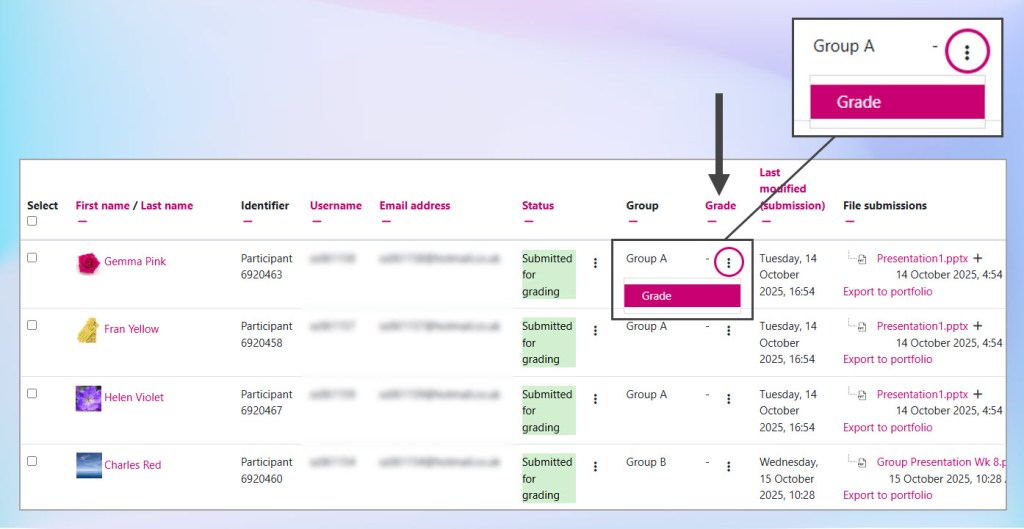
This opens the Grading interface, where you can view the submission, enter a mark, and provide feedback.
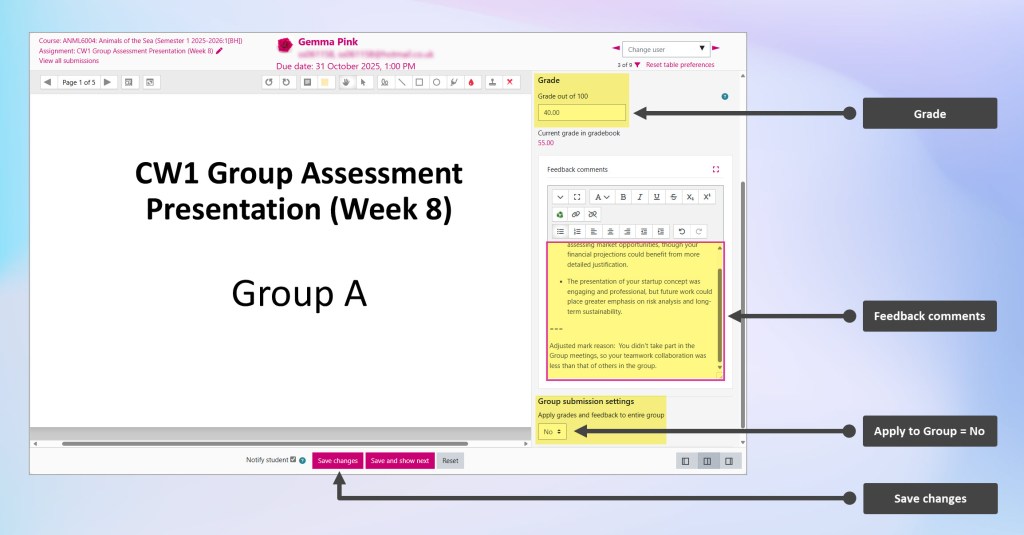
The screen is divided into three areas:
- Left panel: displays the student’s submission (preview or file download).
- Right panel: contains grading options, including marks, feedback fields, as well as the ‘Apply grades and feedback to entire group‘ setting (default: Yes). This setting is located further down the panel and may require scrolling to view.
- Footer: includes the Save changes button.
Providing marks and feedback
Within the grading panel, you can use the following options (depending on how the assignment settings were configured):
| Feedback Type | Description / Usage |
|---|---|
| Grade field | Enter a numeric mark (e.g. out of 100). |
| Feedback comments | Provide overall written feedback for the submission. |
| Annotate PDF | Add comments and highlights directly on the student’s submitted PDF file. |
| Feedback files | Upload a feedback document, such as a completed marking rubric or annotated file. |
Applying marks and feedback to the entire Group
- Enter the marks and feedback for the group submission.
- Leave the ‘Apply grades and feedback to entire group‘ setting as Yes (the default).
- Click Save changes.

- To return to the Submissions page, click the ‘View all submissions’ link in the top left corner of the Grader interface.

You’ll see that the same mark and feedback have been applied to all members of the group.

Adjusting marks and feedback for an individual student
If you need to modify marks or feedback for a specific student:
- Locate the student whose mark or feedback you want to adjust.
- In the Grade column, click the three vertical dots ‘Grade actions‘ icon beside that student’s name.
- Select Grade to open the grading interface.
- Adjust the mark and/or feedback as needed.
- Scroll down to the Group submission settings section and change ‘Apply grades and feedback to entire group‘ to No.
Important: This step is crucial when adjusting marks or feedback for an individual student. If you do not change this setting to No, your adjustments will be applied to the entire group.
- Click Save changes.
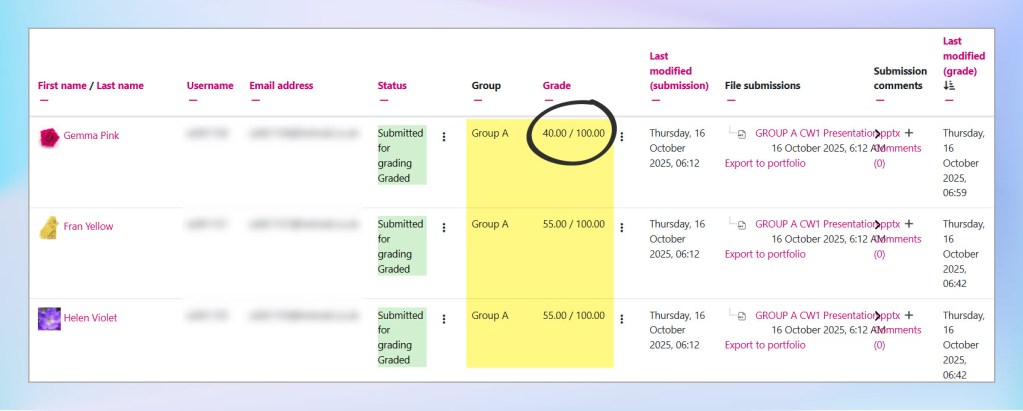
- To return to the Submissions page, click the ‘View all submissions’ link in the top left corner of the Grader interface.
You’ll see that the new mark and feedback is now applied only to that individual student.
Continue marking
Continue marking for each group and individual as required.
Important: Always check the Apply grades and feedback to entire group setting before saving. Ensure it’s set to Yes when initially grading and giving feedback for the whole group, and then No when giving individualised feedback or marks.
Need Help?
If you need support with Group submissions please, contact your Faculty Digital Media and e-Learning Developers (DMeLD) for advice.