
Occasionally, a student may submit the wrong file or a file that cannot be opened. There are different ways for a student to resubmit depending on whether the submission deadline has passed.
- If the deadline has not yet passed, then the student can simply remove the incorrect submission themselves and resubmit following this guidance: How to edit or replace your Coursework submission before the deadline.
- Once the deadline has passed, the student’s submission will be finalised. At that point the Module Leaders have the option to Unfinalise the submission on the student’s behalf. Once the submission has been unfinalised, the student will be able to delete their first submission and upload the correct file.
Step 1: Identify the submission
A student may contact you to explain that they submitted the wrong file and request that it be removed. Since most Coursework activities are configured for anonymous submissions, you will first need to identify the correct submission.
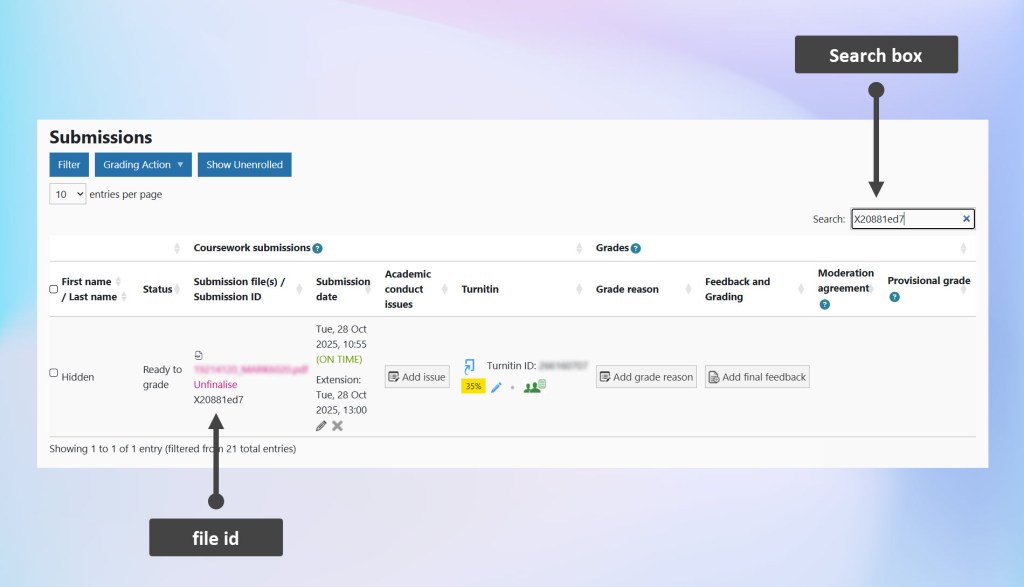
- Ask the student to provide their Submission Receipt, which they will have received by email when submitting their work. The receipt includes the file id (e.g. Xf89cc035), the name of the Coursework activity, and the date and time of submission.
- Enter the file id into the Search: box. The page will refresh and the corresponding submission will show.
Step 2: Unfinalise the submission
How you manage an incorrect or faulty submission depends on whether the student’s submission deadline has passed.
The standard deadline is listed at the top of the Coursework activity. If a student has an approved extension, the updated date appears in the Submission date column, labelled ‘Extension’.
If the student’s deadline has not passed
- The student can edit their submission until their deadline.
- Teaching staff cannot unfinalise a student’s submission until after the deadline has passed and the submission has been finalised.
If the student’s deadline has passed
Once the deadline has passed, the student’s work will be finalised. Note, in the Coursework activity’s settings, Allow late submissions is set to Yes by default; this allows students to submit after their deadline if there is no existing submission for that student.
- Identify the student’s submission using one of the following methods:
- Follow Step 1 above to locate the submission using the student’s file id or Turnitin ID.
- Switch to the ‘Coursework Un-Mask Names’ role to temporarily reveal student names.
- Click your initials or profile photo in the top-right corner of Moodle and switch to the Coursework Un-Mask Names role to temporarily reveal student names. For detailed instructions and screenshots, see our documentation on how to temporarily un-mask student names.
- As the submission deadline has passed, you will first need to add an extension to allow the student to submit a new file.
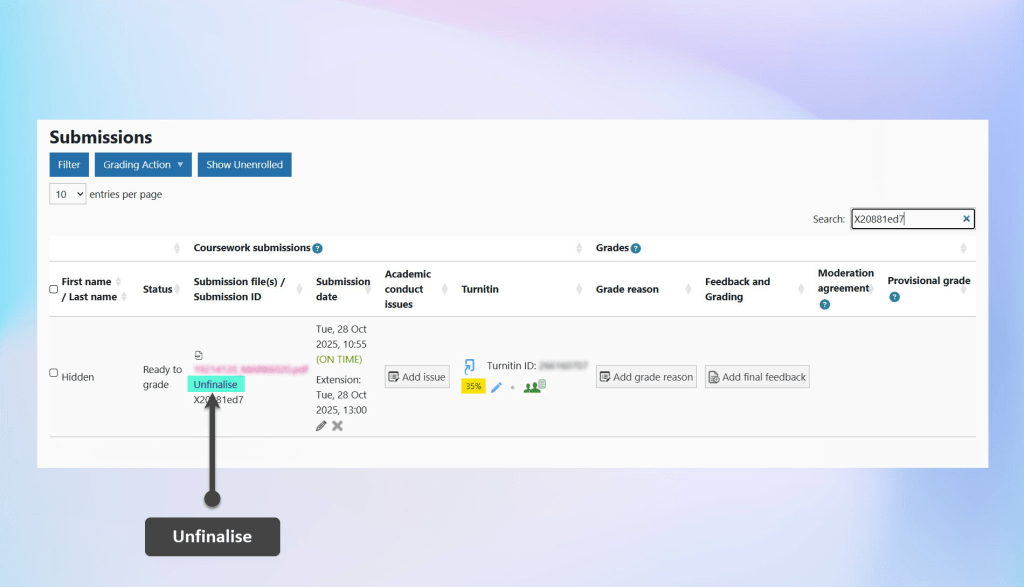
- Once you have applied the temporary extension, click Unfinalise for that student in the Submission file(s) column.
- Contact the student to let them know that they can now remove their incorrect submission and resubmit. You may also wish to share the student guidance: How to edit or replace your Coursework submission before the deadline.
- Once the student has submitted a new copy, their submission will finalise once the temporary extension deadline is reached.