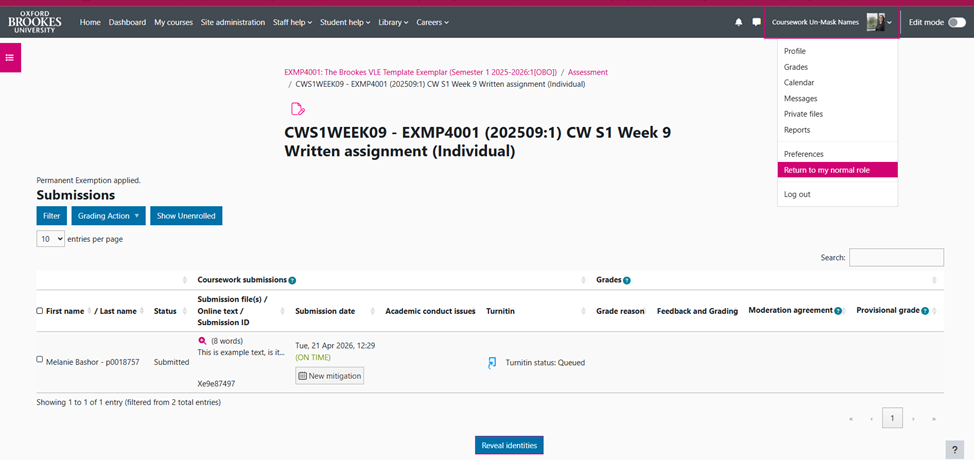
Extensions for assessments in a Coursework activity will normally appear automatically, but in certain exceptions (such as in resit dropboxes or with certain Exceptional Circumstances outcomes) Module Leaders will need to apply or adjust extensions manually. If your Coursework activity has blind marking enabled, student names will appear as ‘hidden’. Therefore, in order to identify a student’s submission and adjust their extension you will need to first switch into a role that has permission to view students’ names temporarily.
Step 1: How to temporarily un-mask student names
- Go to the Coursework dropbox.
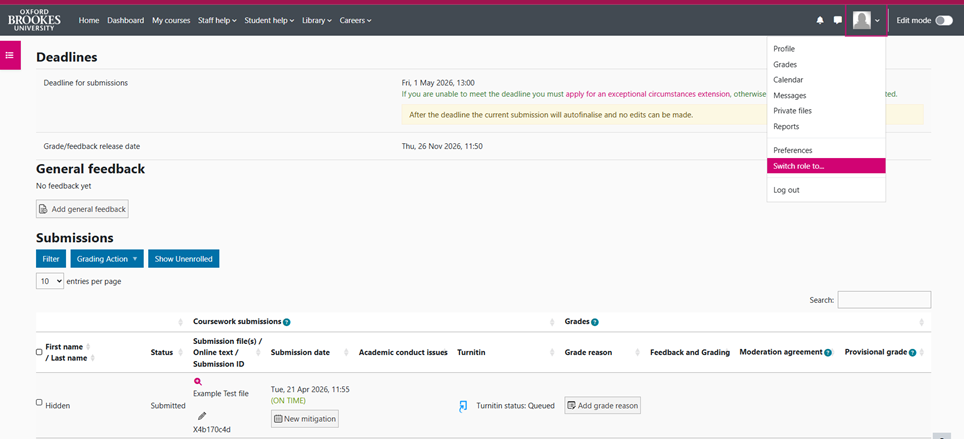
- Click your initials or profile photo from the top right corner of Moodle.
- Click Switch role to…
- In ‘Switch role to..’ scroll to the bottom of the list and choose Coursework Un-Mask Names.
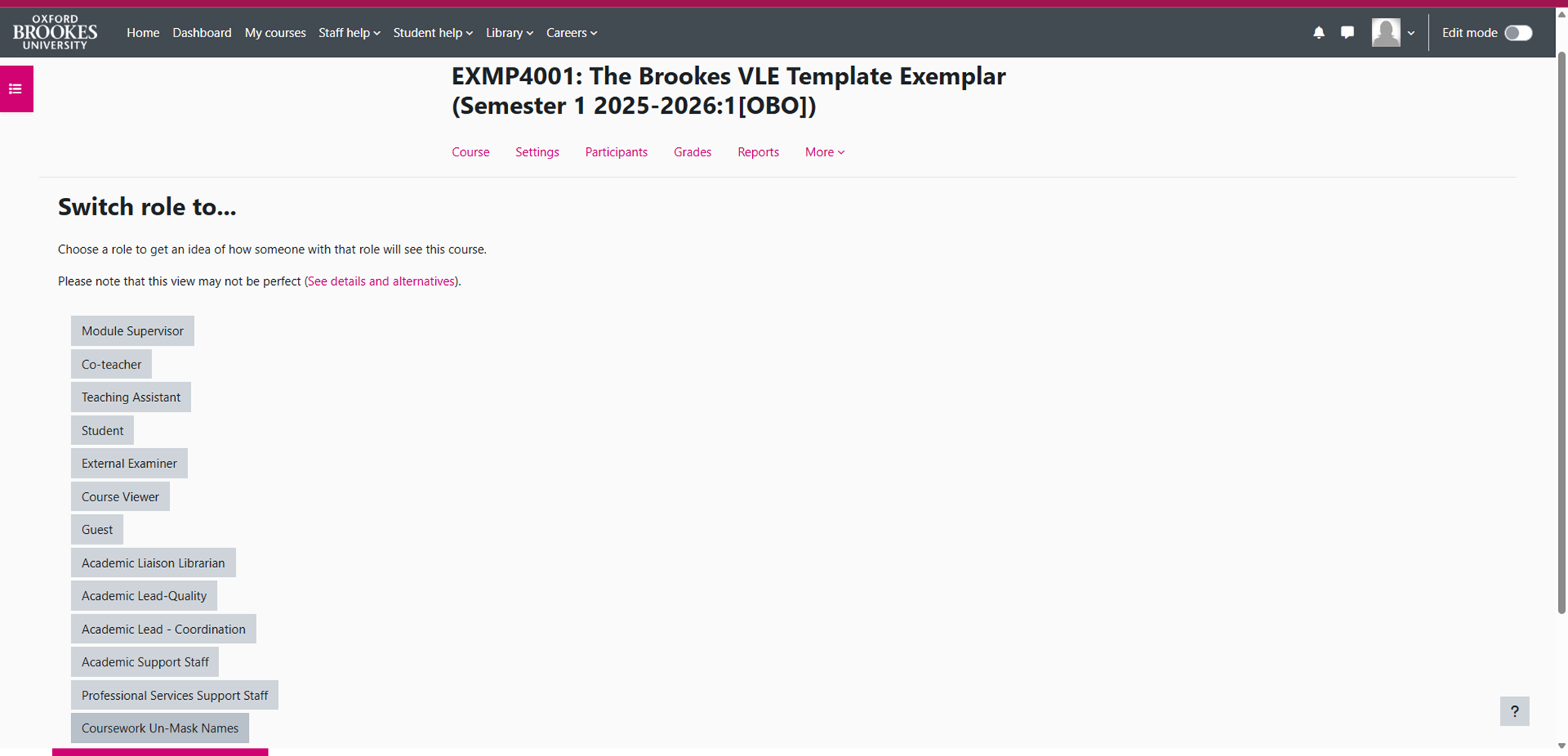
This will allow you to temporarily reveal student identities and will allow you to add or correct an extension for a student.
Note: You should only use this role to add or correct extensions for students. This role option will only appear in the list for certain Moodle roles and is designed for Module Leaders, Module Supervisors and Co-Teachers as a temporary role to use only to administer extensions. You can not change or edit the activity settings, nor can you change or edit marks and feedback with this role.
Step 2: How to add or correct an extension
If there is no extension
- Find the student for whom you need to add an extension.
- In the ‘Submission Date’ column, click New Mitigation below the submission date
- Next to the ‘Extended deadline’, select the date and time of the extension.
- In the ‘Extra information’ section add the reason for the extension for the records (such as Exceptional Circumstances – Type C 2 week extension).
- Click Save.
- Click Close.
If the extension is incorrect
- Find the student for whom you need to correct the extension
- In the ‘Submission Date’ column, click the grey pencil icon below the existing extension date.
- Next to the ‘Extended deadline’, select the date and time of the extension.
- In the ‘Extra information’ section add the reason for the change for the records (such as Exceptional Circumstances Type C – 2 week extension is missing).
- Click Save.
- Click Close.
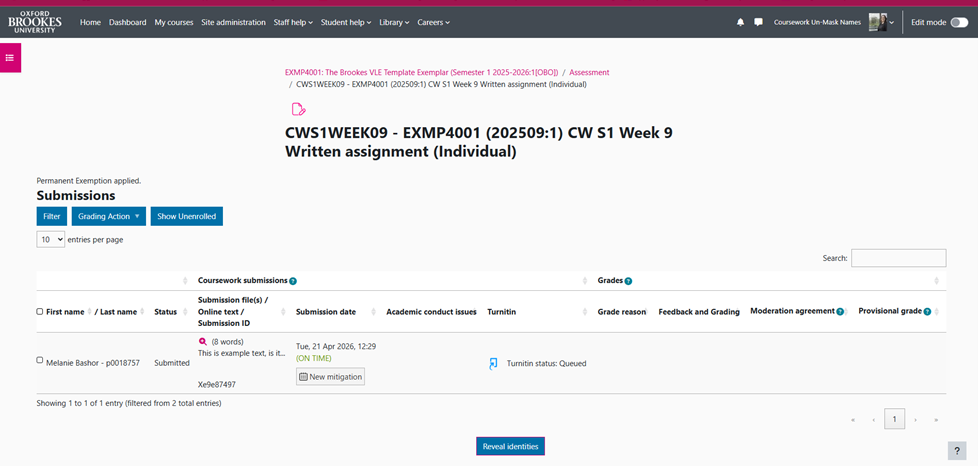
Repeat steps 5-10 for as many extensions as you need to add.
Once you have finished adjusting the extensions and are ready to proceed with other activities (such as marking and adding feedback), you’ll need to switch back into your normal role by:
- Clicking your initials or profile photo from the top right corner of Moodle. (Note: the type of role you have temporarily switched into will appear in this corner as well in this case ‘Coursework Un-Mask Names’.)
- Click Return to my normal role.