
ISP extensions
ISP (Individual Support Plan) extensions are stored in Moodle and are applied to a Coursework dropbox when the Deadline for submissions is updated.
For this reason, Module Leaders must amend the Deadline for submissions of each Coursework dropbox at least once to trigger the ISP extensions. Even if the Deadline for submissions is correct, you will need to change it (you can always change it back to what it was originally).
To do this, open the Settings of the Coursework activity and update the Deadline for submissions date. See: Which dropbox settings do I need to check in Coursework dropboxes?
Pro tip: Do this before you make your Coursework dropbox visible to students
If a student receives a new ISP or has an existing ISP updated during the semester, the system actively monitors these changes. When detected, the extension is recalculated and updated automatically to reflect the new ISP provisions.
Type A and B extensions
When a student submits an Type A or B Exceptional Circumstances request via the ‘My Requests’ section of their Student Information, the request undergoes internal checks. If the extension is approved:
- Type A extensions are granted automatically.
- Type B extensions are also granted automatically, provided the student has not exceeded the allowed number of Type B extensions.
Once approved, an automated email is sent to both the student and the module leader to confirm the extension and provide relevant updates.
Using the extension length granted, the Coursework system will:
- Reference the original ‘Deadline for submissions’ date populated in Moodle (Note: if this is updated the extension will also be updated).
- Check whether an Individual Support Plan (ISP) extension has already been applied.
- Ensure the extension does not exceed the last possible date before mark upload
- Calculate the correct new due date for the student based on the above information.
This calculated extension will be displayed in the following places:
- For the Module Leader – visible on the ‘Submission date’ column in the dropbox.
- For the Student – visible at the top of the dropbox, where the words ‘You have an extension!’ appear.
Type C extensions
Unlike Type A and B, Type C extensions cannot be fully automated, as in some scenarios the decision-making process takes place outside the Exceptional Circumstances system, often within an Exam Committee.
When a student submits a Type C Exceptional Circumstances request via the ‘My Requests’ section in their Student Information Portal, the Coursework tool in Moodle is notified and automatically applies the notice ‘Exceptional Circumstances pending’ to alert the Module Leader that an extension request has been submitted.
- If the Exceptional Circumstances team rejects the request:
- The student is notified via email.
- The ‘Exceptional Circumstances pending’ message is removed in Coursework and returns to the student’s original due date.
- If the request is approved and an extension is granted:
- Coursework calculates in the same way as for Type A and B extensions (based on the Moodle due date and any ISP extension) and applies the extension in the dropbox (picture)
- Coursework calculates in the same way as for Type A and B extensions (based on the Moodle due date and any ISP extension) and applies the extension in the dropbox (picture)
- If the request is escalated to the Exam Committee:
- Once a decision is made, the Module Leader and student will receive an email notification.
- Manual intervention by the Module Leader is required at this stage to update the extension information on Coursework.
Manual Actions for Module Leaders (non-automated Type C Extensions):
Please note: if student identities are anonymised, you may need to contact support for help identifying the correct student. Alternatively, you can temporarily unmask identities in order to identify the student yourself.
- To apply an extension after acceptance:
Click pencil icon below the ‘Exceptional circumstances pending’ message, change the status to ‘Exception‘, and enter the new due date. Please note, the extension must not go beyond the mark upload deadline, please ensure you refer to the Brookes calendar to confirm this before applying the new extension.
Known issues
1. Type B turned into a Type C extension
If a student is granted a Type B extension and then immediately submits a request to upgrade it to a Type C, the system will display the status as “exemption text”, which overrides the visibility of the already-approved 72-hour Type B extension.
Impact:
- While the Type C request is pending, the 72-hour Type B extension will not be displayed to the Module Leader or the student on the submission interface.
- If the Type C request is rejected, the system will revert to showing the Type B extension.
- If no decision is made on the Type C request (e.g., due to a delay or issue), the Module Leader may not see any extension on the system and could mistakenly consider the submission late. However, Module Leader will have received an automated email at the time the Type B extension was granted.
2. Extensions and group restrictions
Once you unhide a Coursework activity, you will notice that it includes a group restriction.
For example:
Not available unless: You belong to (DO NOT EDIT) ANML6002 (202601:1) – CWS2WEEK06-1 OE (hidden otherwise)
You must not delete this restriction. It is required to ensure that extensions (ISPs and Exceptional Circumstances) can be applied correctly to the Coursework activity.
Likewise, do not apply the same group restriction to more than one Coursework activity, as this will also cause issues with extensions.
Note: If you have meta-linked courses and would like students from multiple cohorts to use a single submission point, please see our guidance: How to manage Coursework activities in meta-linked courses
3. Marking extensions when grades are released
If you wish to release marks but some students still have active extensions, please note the following:
- Once marks are released, all students are de-anonymised, even if they still have an extension and have not yet submitted.
- This means you will be able to see the names of students with ongoing extensions. This is expected behaviour and aligns with our fair marking policies.
Marking late (after grades and feedback have been released to students)
Occasionally, you may need to mark a submission after grades and feedback have been released to the rest of the cohort. For example, when a student has been permitted to submit late. In these situations, it is essential to follow the steps below when using Turnitin Feedback Studio:
- Do not enter the grade in the top-right grade box in Turnitin Feedback Studio. Doing so will release the grade and feedback to the student, even though their work is still in the process of being marked.
- Instead, enter the grade in the Feedback Summary section within Feedback Studio.
- When you are ready for the late-marked student to receive their grade and feedback, return to Feedback Studio and add the grade in the top-right grade box for that student. This will then release their feedback appropriately.
(click on images to enlarge)
Do (when marking late)

Don’t (when marking late)
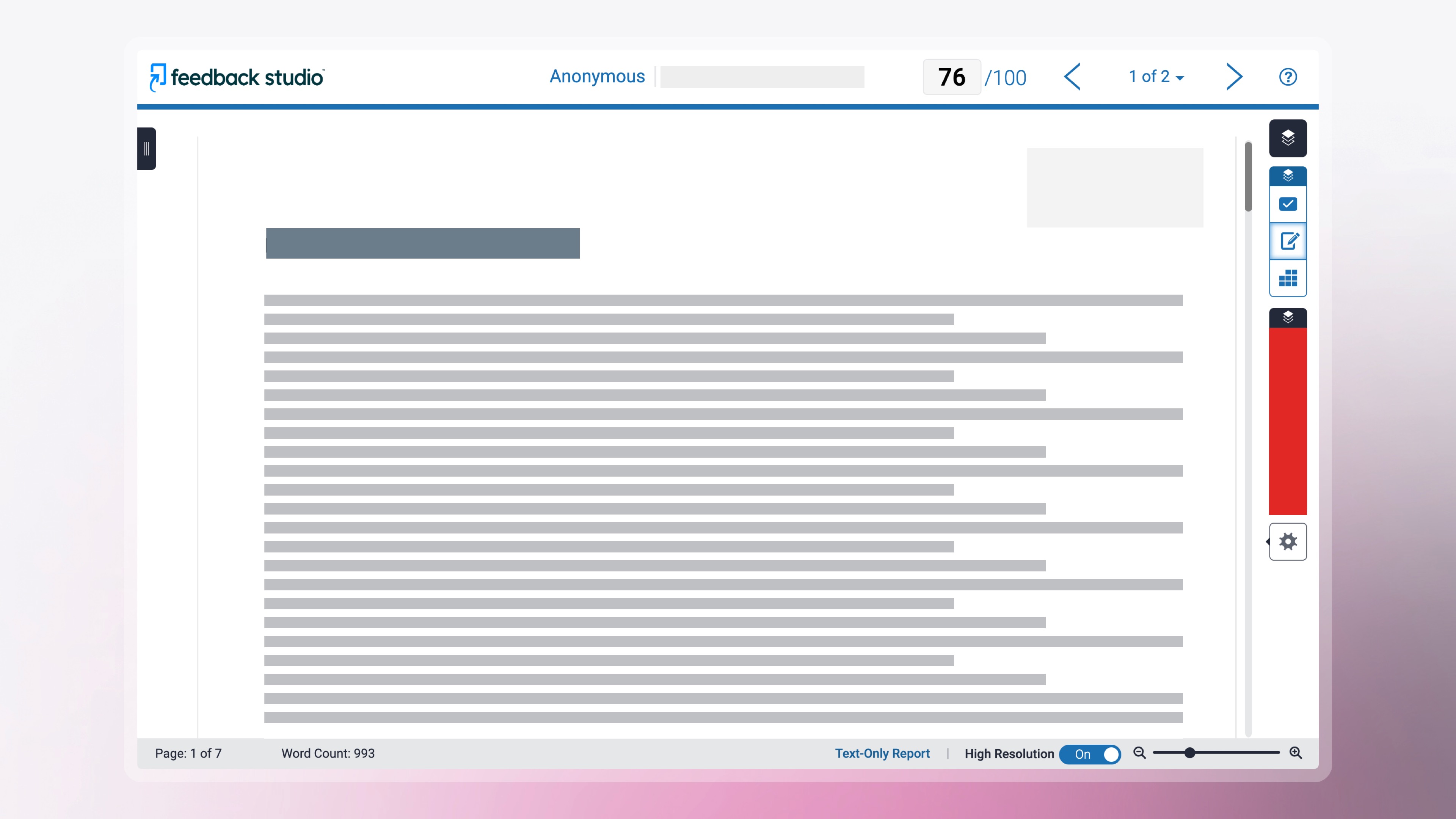
Only enter the final mark in the ‘Grade’ box when you are ready for it to be visible to the student.