
As a Module Leader you can see:
- An overview of attendance of all your students for all teaching sessions in a single module.
- An overview of the attendance record for a single student across all modules.
Table of Contents
Attendance record of all students in a single module
- Go to your academic module in Moodle.
- Expand the Key Resources section if it’s not already expanded.
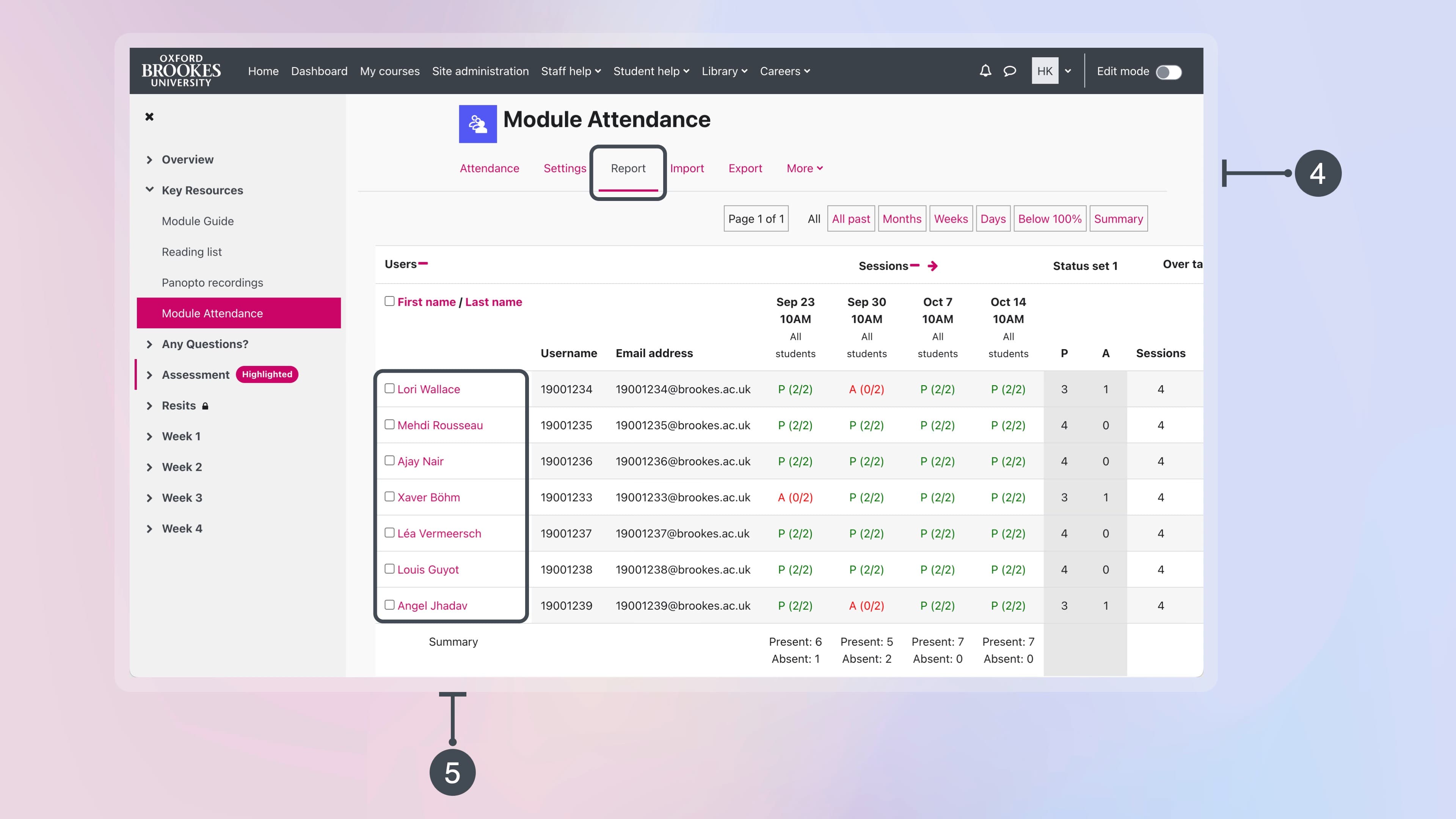
- Click Module Attendance.

- From the time filtering options, select All to view the record of all sessions in the module.

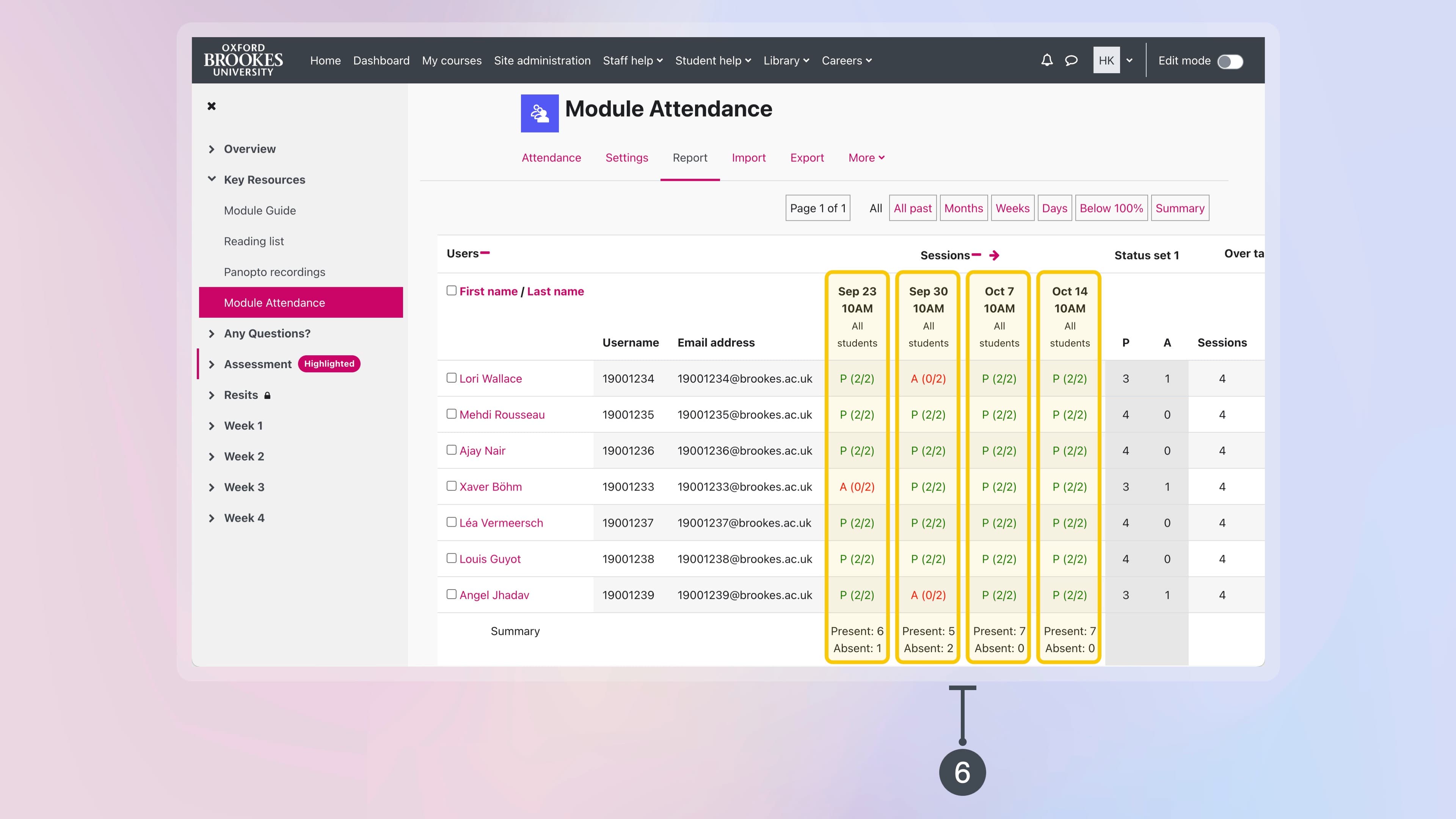
- The report contains columns for each session. The attendance for each student at a session is displayed within these columns; total attendance for the session is displayed at the bottom of each column..
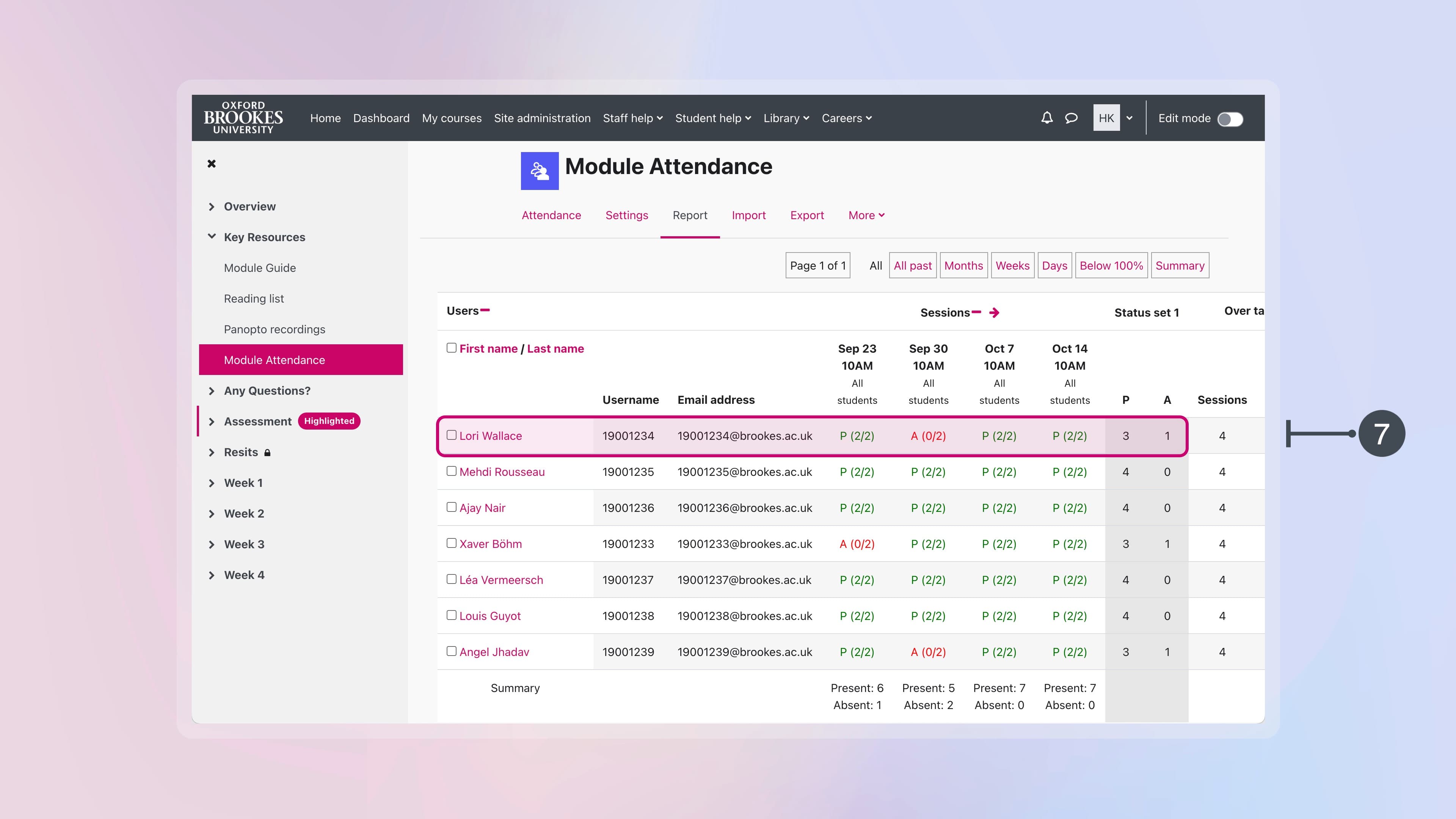
- Scan across a row to see attendance for a student in all sessions; total attendance for that student is displayed at the end of the row.
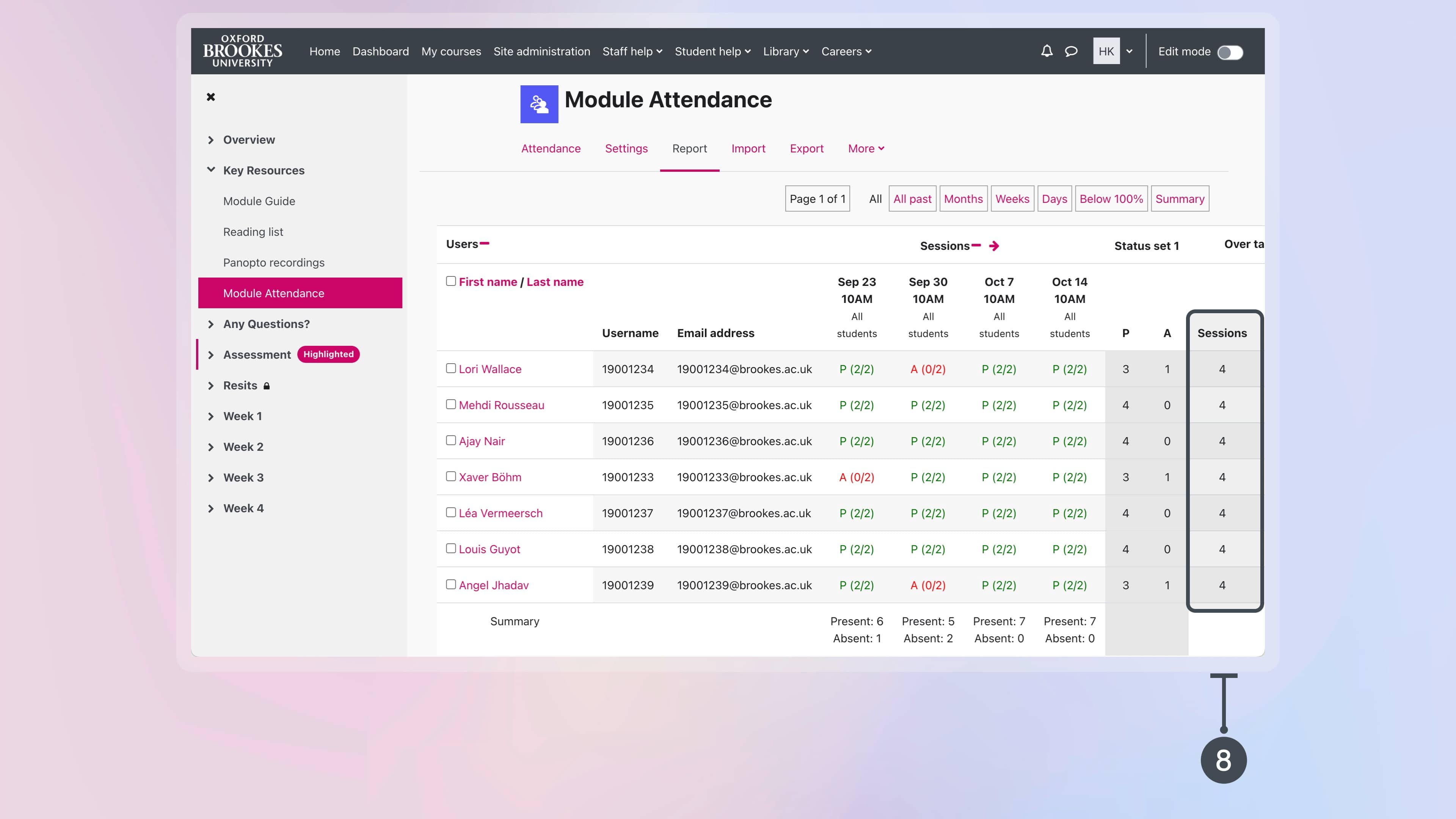
- The Sessions column shows the total number of sessions that were offered in the module during the semester.
Please disregard any references to Points and Percentage columns.
Attendance record of a single student across all modules
Note. It’s not possible to view attendance of all students across all modules in a single screen.
Important. When you are viewing the attendance record of a student across all modules, Moodle will show you attendance only for modules that you have access to.
You can view attendance records of a single student for all their enrolled modules where attendance is monitored:
- Choose any of your academic modules in Moodle.
- Expand the Key Resources section if it’s not already expanded.
- Click Module Attendance.
- Click on the name of the student for whom you wish to view their records.
- Click All sessions.
- On the right, select to group sessions by Course to view the record of all sessions in the module.
- From the time filtering options, select All.

- On the left, you can see the total number of sessions that the student has been Present and Absent across all modules they are enrolled on

- The rest of screen provides a breakdown of attendance in the different modules that the student is enrolled on.
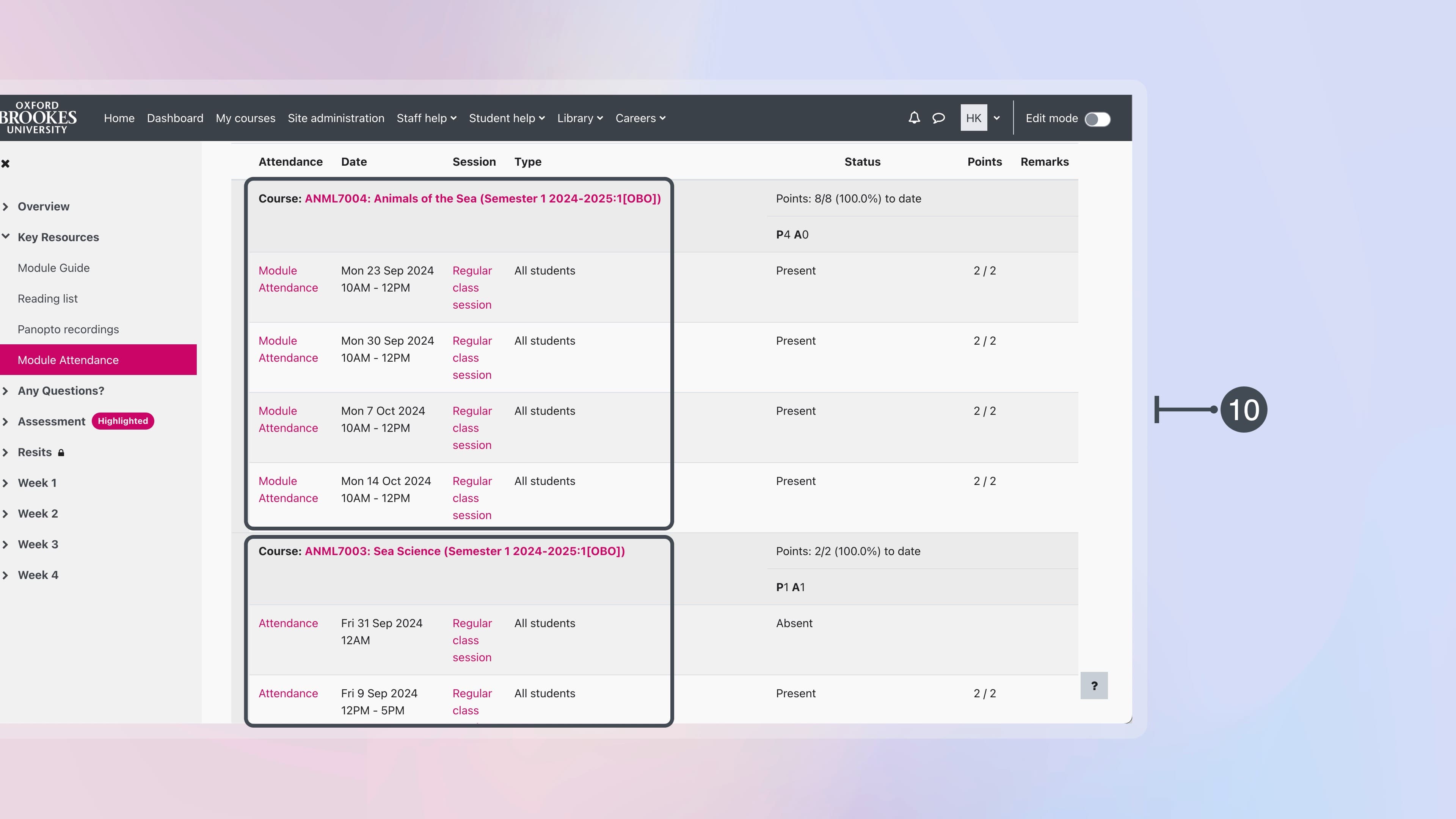
- The sessions appear on the left-hand side of the table.
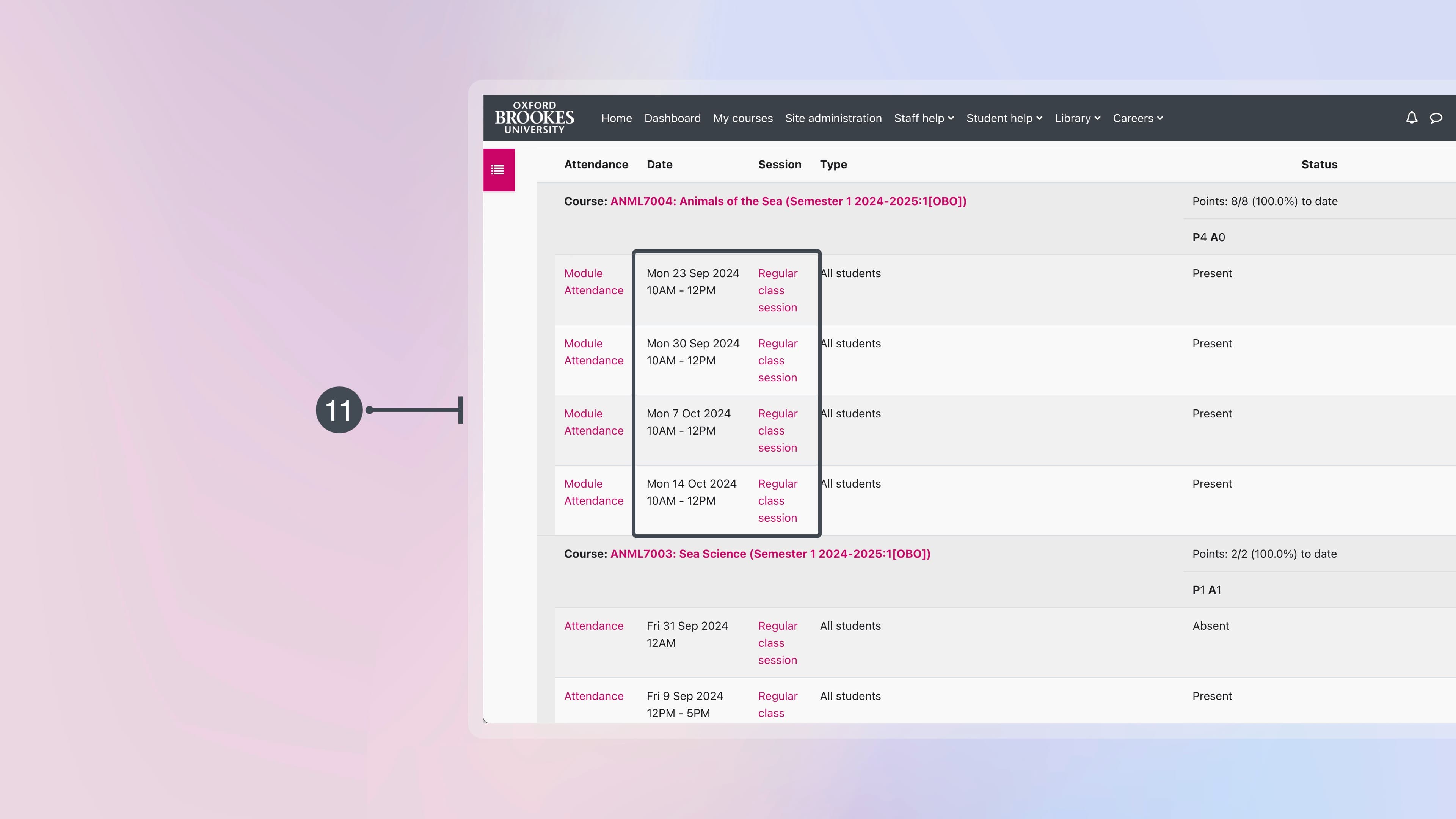
- The Status column on the right-hand side shows you the total number that the student was Present or Absent in each module.
- The Status column on the right-hand side shows the status (Present or Absent) of the student for each session.
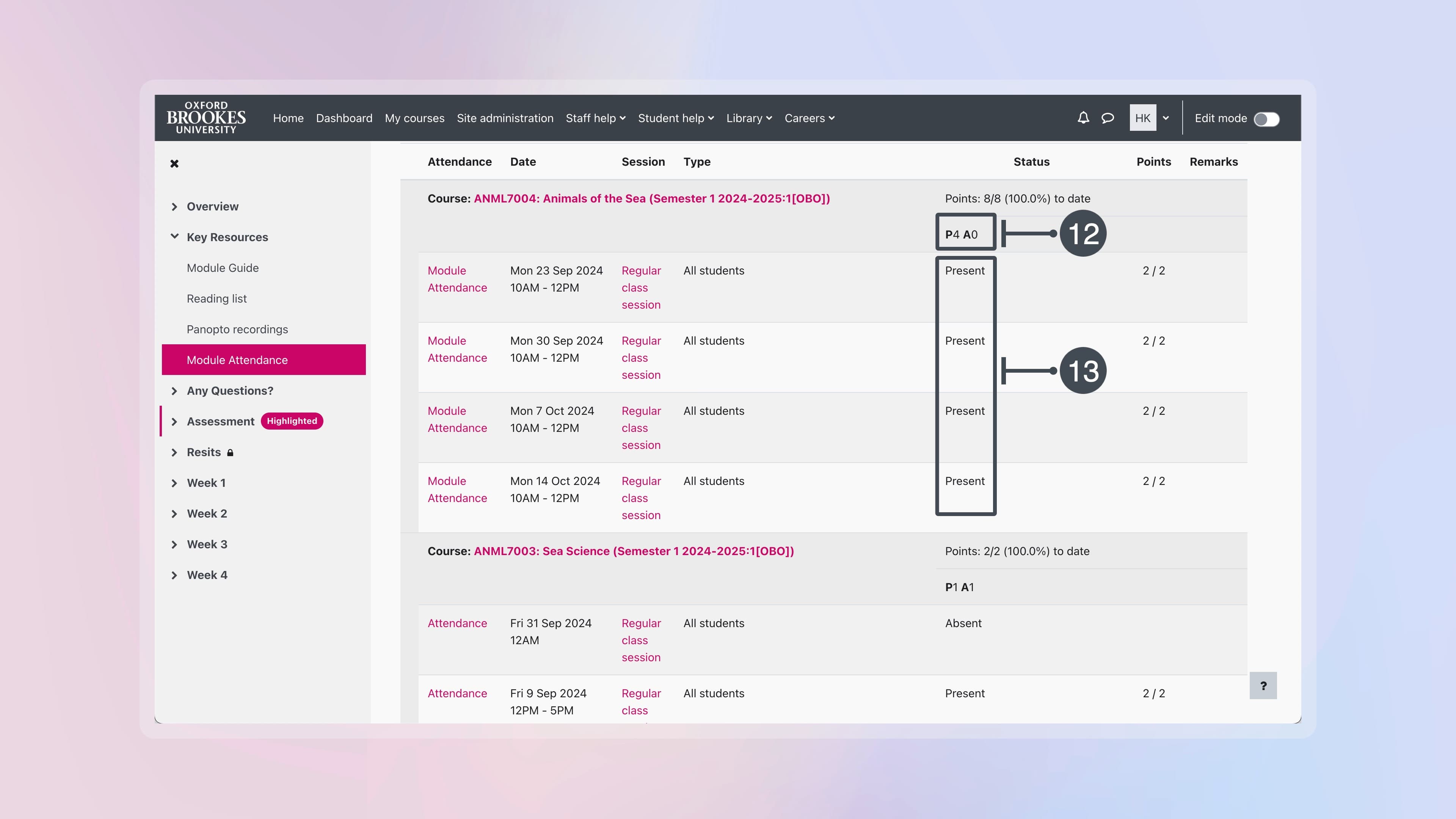
Please disregard any references to Points in the ‘All sessions’ screen.