
The Coursework tool in Moodle allows Module Leaders to automatically transfer marks from Moodle to Banner without having to manually copy marks from a Moodle spreadsheet to a Banner spreadsheet.
The process of transferring grades from Moodle into Banner involves:
- Queuing the marks for each summative Coursework dropbox.
Let’s look at the steps in detail:
Things to know about the automatic mark upload process
- The automatic marks upload process works only when Banner’s mark upload window is open for upload. For example, for S1 2025-26, the window is open from December 2025 until 8 January 2026.
Check before you queue
Before continuing to queue the marks below, please ensure the mark upload window is open by performing the following checks:
– Check the Exam Committee Schedules (new window) for the specific dates of the mark upload window.
– Check whether the Faculty Grade Entry (new window) screen in Banner is open for mark upload (for programmes that follow standard Brookes semester dates).
– Check that you received the reminder email from Student Records that the mark upload window is open.
If you complete the steps below outside of the mark upload window then this will result in those grades not being uploaded to Banner (even when the window later opens)
- You don’t need to release the grades to students in Moodle to be able to queue the marks for Banner.
- For students in the dropbox who have an extension, you will be able to queue their marks only after the extension date has passed.
- Remove the ‘Exceptional circumstances pending’ message / flag for students in the dropbox that may still be active.
- You can queue marks in batches. For example, if you have marked work from students who submitted on time, while other students have an extension and haven’t been marked yet, you can queue the marks for the former group (students on time with no extension) first and then queue the marks for the latter group (students with extensions) later once you have finished marking. The systems queues the marks of the students with extensions by detecting changes in their grades or the grade reason column.
- When you queue the non-extension students, extensions students (who have submitted but not yet marked) will also be transferred to Banner, they will get a zero mark and ‘Not attempted’ in the Grade Reason field. Note that as mentioned above, you will be able to queue the marks of students with extensions only after their extension date has passed.
- If some students (with or without extension) have never submitted their work and the deadline/extension date has passed, the Grade Reason column will automatically switch to ‘Not attempted’ for those students and during the queuing process, it will be transferred to Banner as ‘Not attempted’.
Queuing the marks in Moodle
- Click on each Coursework activity for which you would like to queue grades.
- Click Queue grades for transfer.
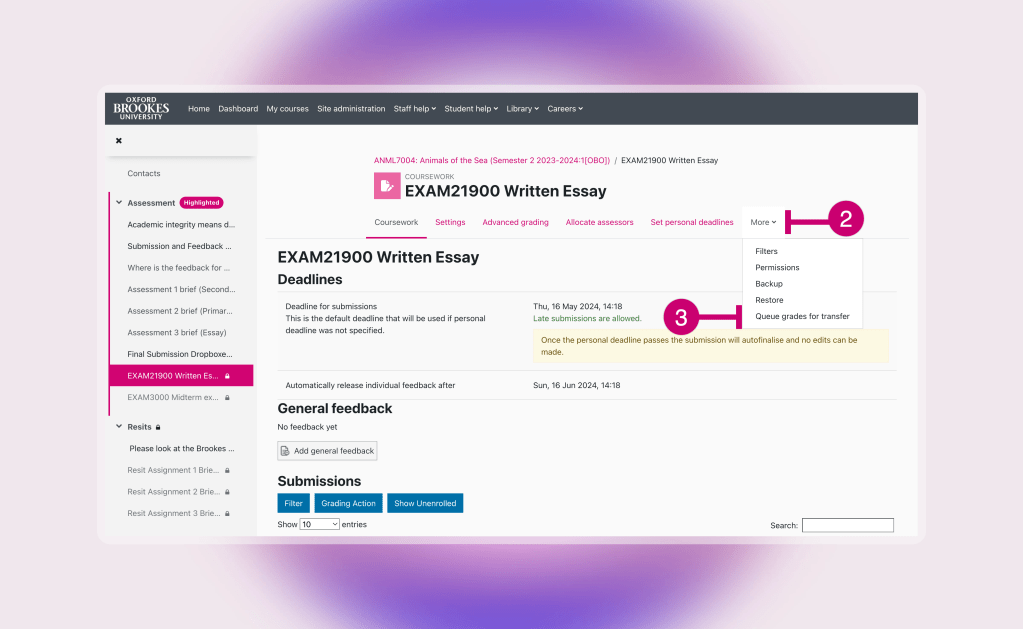
Note: Depending on your Coursework activity settings, the option Queue grades for transfer can either appear at the top menu of your dropbox or under More.
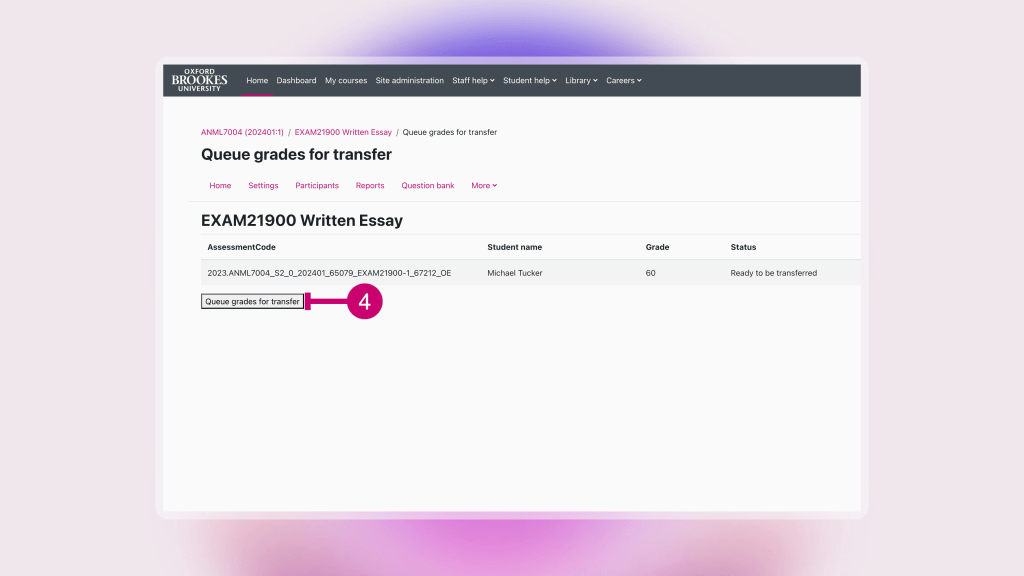
- The next screen will give you the opportunity to double check the grades before the transfer. The screen tells you what is going to be queued, what has been queued (if you are re-queuing marks), and what will not be queued and why.
Only those marks with status shown as ‘Ready to be transferred’ will be transferred to Banner.
After checking, click Queue grades for transfer at the bottom left of the list.
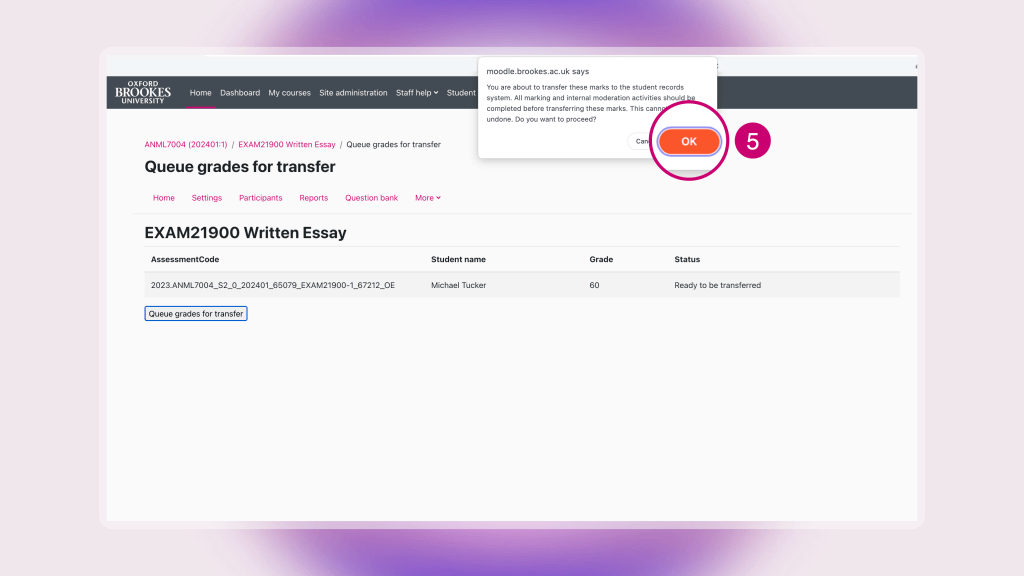
- Moodle will ask you to confirm that you would like to transfer grades. Click OK.
Only click OK if you have checked that the mark upload window is open.
- A message will appear stating “The grades have been queued for transfer”.

Note: you will need to follow steps 1-6 above for as many Coursework activities you need to transfer grades to Banner.
Viewing the marks in Banner
- Click Staff.
- Click Student Information Login for staff and log in to Banner.
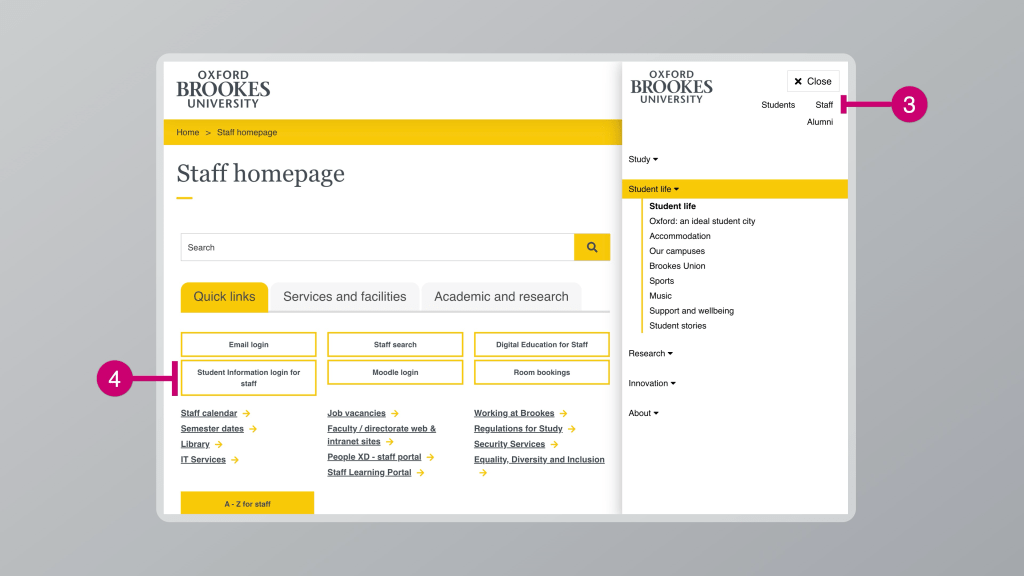
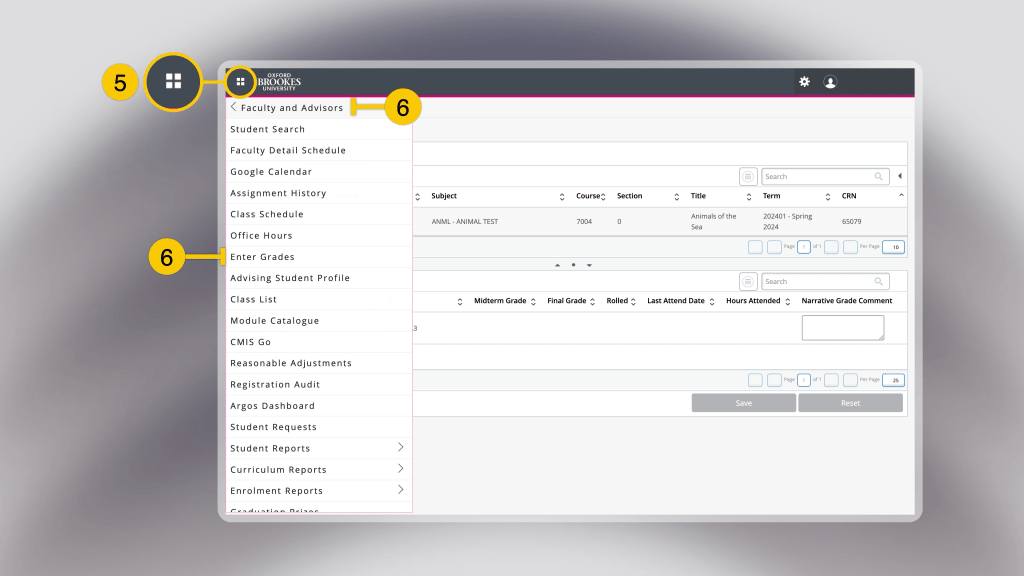
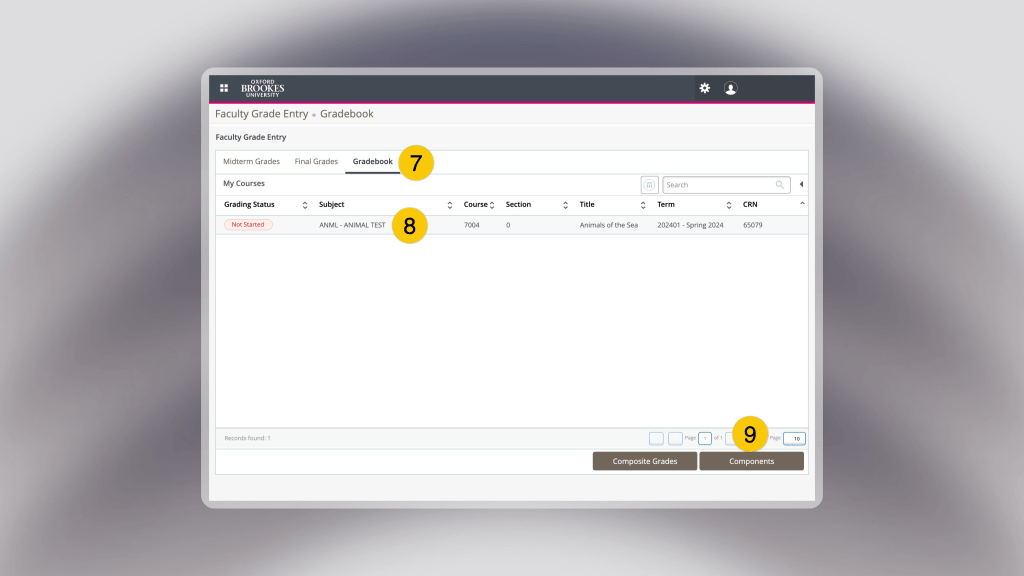
- Click Gradebook.
- Click the name of your module, in the Subject column.
- Select Components (bottom right).
- Click on each of the assessment components.
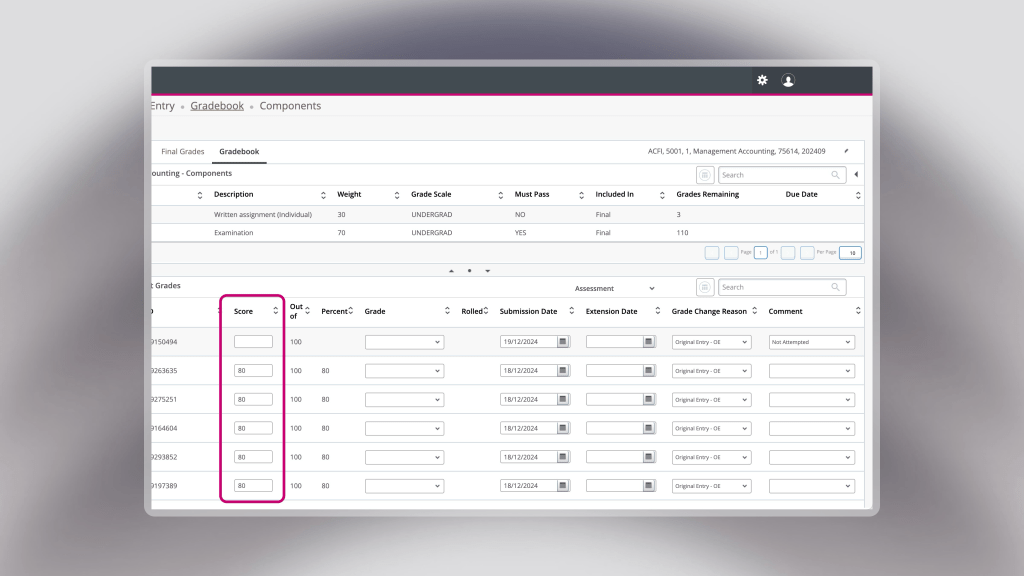
That’s it! Clicking on each assessment component will reveal the list of students with marks against each of them.