
With some assessments, you may need to set up different settings for specific students; for example, you might want to:
- extend the deadline for an assignment or quiz;
- allow an additional attempt/attempts at the quiz;
- allow more time for a student to complete a quiz attempt.
If you wish to set up exceptions, there are two ways of doing this: one is by adding the student(s) to a group in the course and setting up a Group override; the other way is by adding a User override for each student. The configuration options are the same for each method but this article will focus on the User override option.
(The screenshots below demonstrate the Override configurations being applied to a Quiz activity but the steps are the same for a Moodle Assignment activity)
Adding an override
Having already created your Quiz/Assignment activity …
- From your course page, click on the activity.
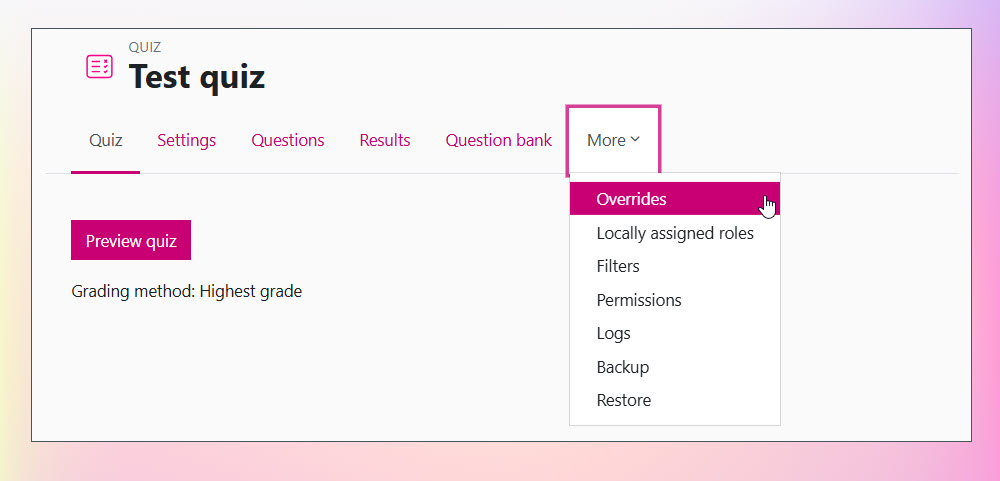
- From the contextual navigation menus (just below the name of the activity), click on More, then select Overrides.
- On the next page, ensure that you have selected User overrides from the drop-down list then click on Add user override:

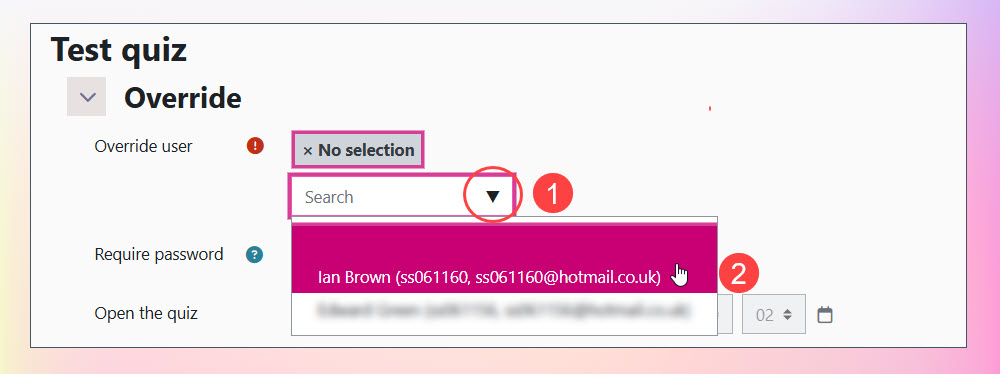
- On the ‘Override’ page, select the user for which you need to create the override. Click on the down arrow (1, below) to the right of the search box for the ‘Override user’ field. This will present a list of students – if there are too many to display, start to type in the box to filter the list. Click on the student entry in the list (2) to select that student:
- Next select the elements you would like to override. Unless changed, the elements will inherit from settings of the current activity. There are several elements available for you to modify:
Override options: Moodle Quiz activity
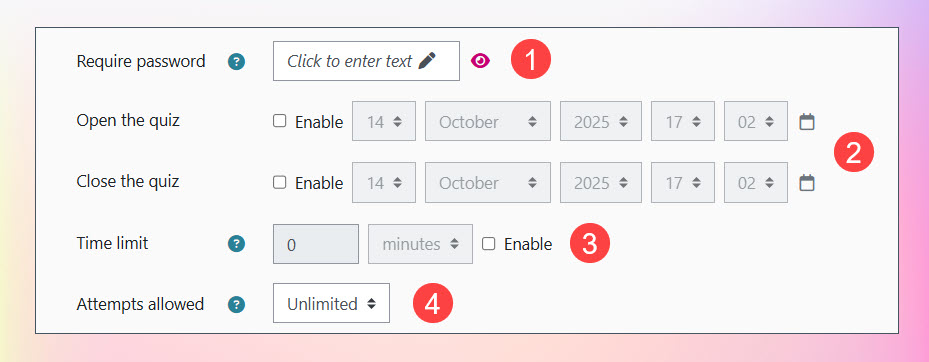
- (1) – You can define a specific password for this student to enter in order to attempt the quiz (Require password).
- (2) – You can define a specific date and time from which the student can attempt the quiz (Open the quiz) and a specific deadline by which the student has to complete the quiz (Close the quiz).
- (3) – You can define a specific time limit for how long the student has to complete a quiz attempt once they have started the attempt. If not enabled then there is no time limit (Time limit).
- (4) – You can specify how many attempts the student is allowed for this quiz (Attempts allowed).
Override options: Moodle Assignment activity
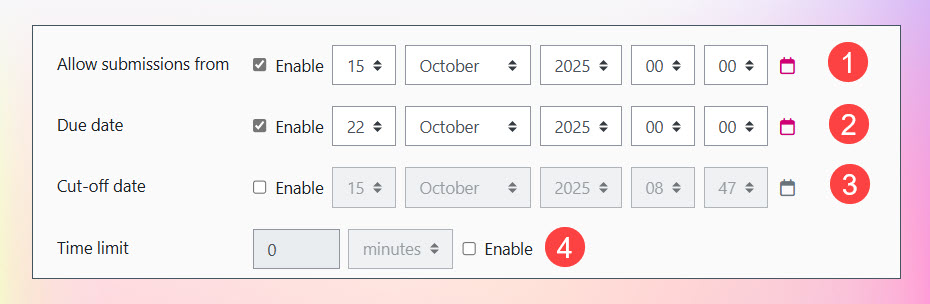
- (1) – You can define a specific date and time from which the student can submit their work (Allow submissions from).
- (2) – You can define a specific date and time by which the student has to submit their work (Due date).
- (3) – You can specify an absolute deadline beyond which the student can no longer submit their work. If this is not enabled, then the student can submit their work at any time (Cut-off date).
- (4) – You can define a specific time limit for how long the student has to complete an assignment. The student can still make their submission after the time limit has expired but it is flagged as submitted after the time limit. If not enabled then there is no time limit (Time limit).
- Once you have modified the settings for this particular student, click on Save (or Save and enter another override if you want to set overrides for another student).
Duplicating an override
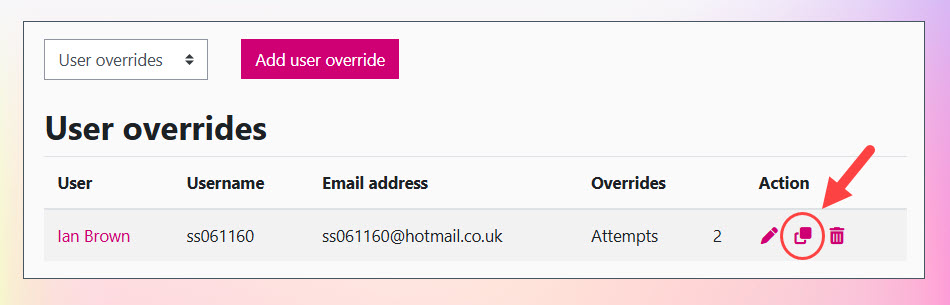
Having defined an override for one student, you may wish to set the same override conditions for another student for the same Quiz or Assignment. To do this, from the main ‘User overrides’ screen, click on the Duplicate icon next to the user override that you wish to copy:
On the next page, simply select a different user (as in step 4 above), then click on Save.