If you prefer to take attendance on behalf of students or a student notifies you that they don’t have a device, you can do so via the Module Attendance link in the Key Resources section of your module:
- Go to the relevant module in Moodle.
- Click the arrow next to Key Resources to expand the section if it’s not already expanded.
- Under Key Resources, click on Module Attendance.

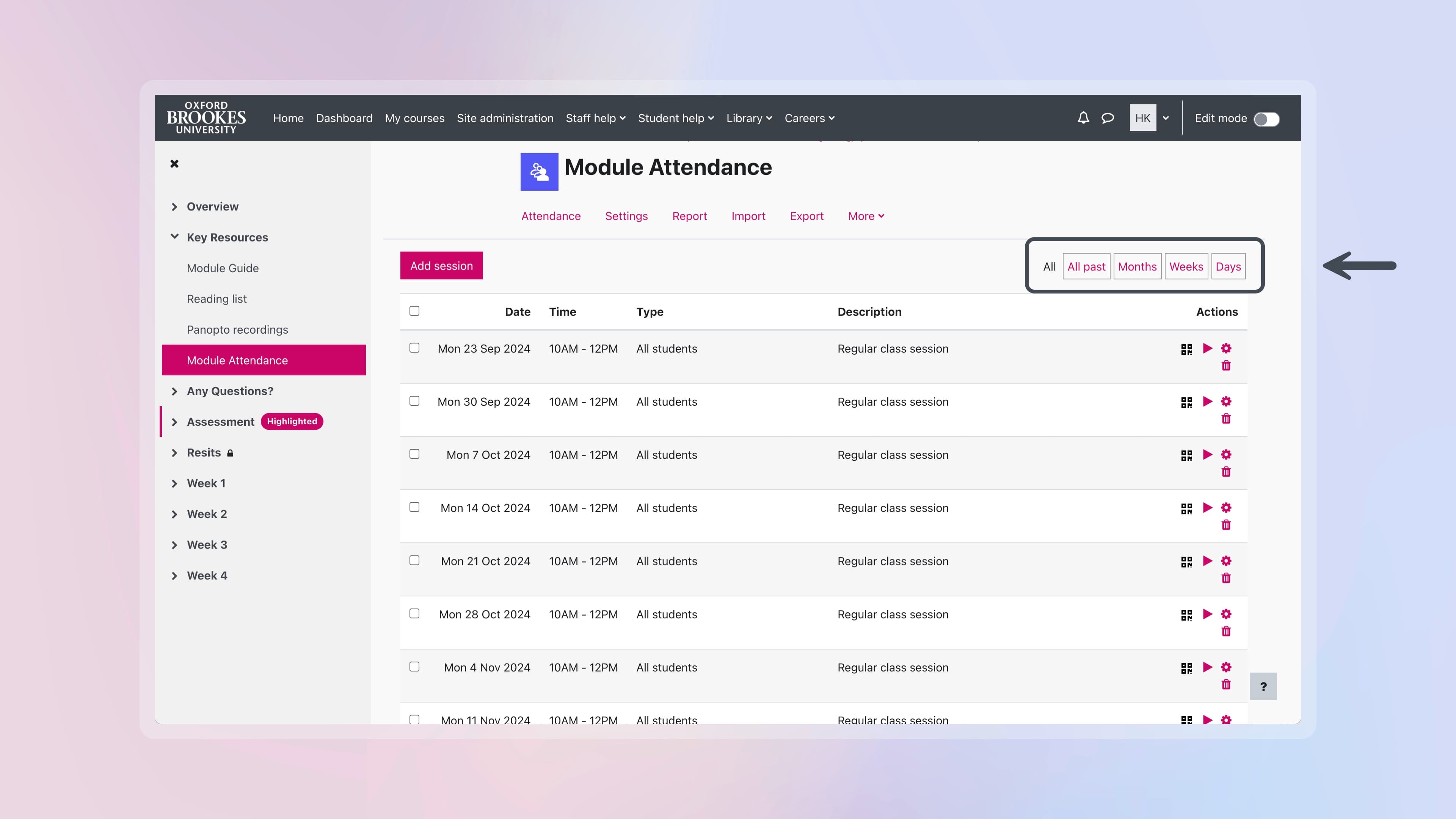
- Locate the session for which you wish to capture attendance.
Is the session not appearing in the list?
If the session you wish to record attendance for is not appearing in the list, use the filters All/All past/Months/Weeks/Days to filter the timings of the sessions. Moodle always shows you the sessions for the current week by default, therefore if you wish to check attendance records for past sessions or check the timings of future scheduled sessions, you may need to switch the filtering options accordingly.
If after adjusting the filtering options, a session still doesn’t appear in the list, then please check in module Google calendars published by Timetabling:
– If your session does not appear in Moodle but is published in the module Google Calendar, please complete the Attendance Monitoring Query form.
– If your session is also missing from the module Google calendar, please use the Timetable Request form to inform Timetabling.
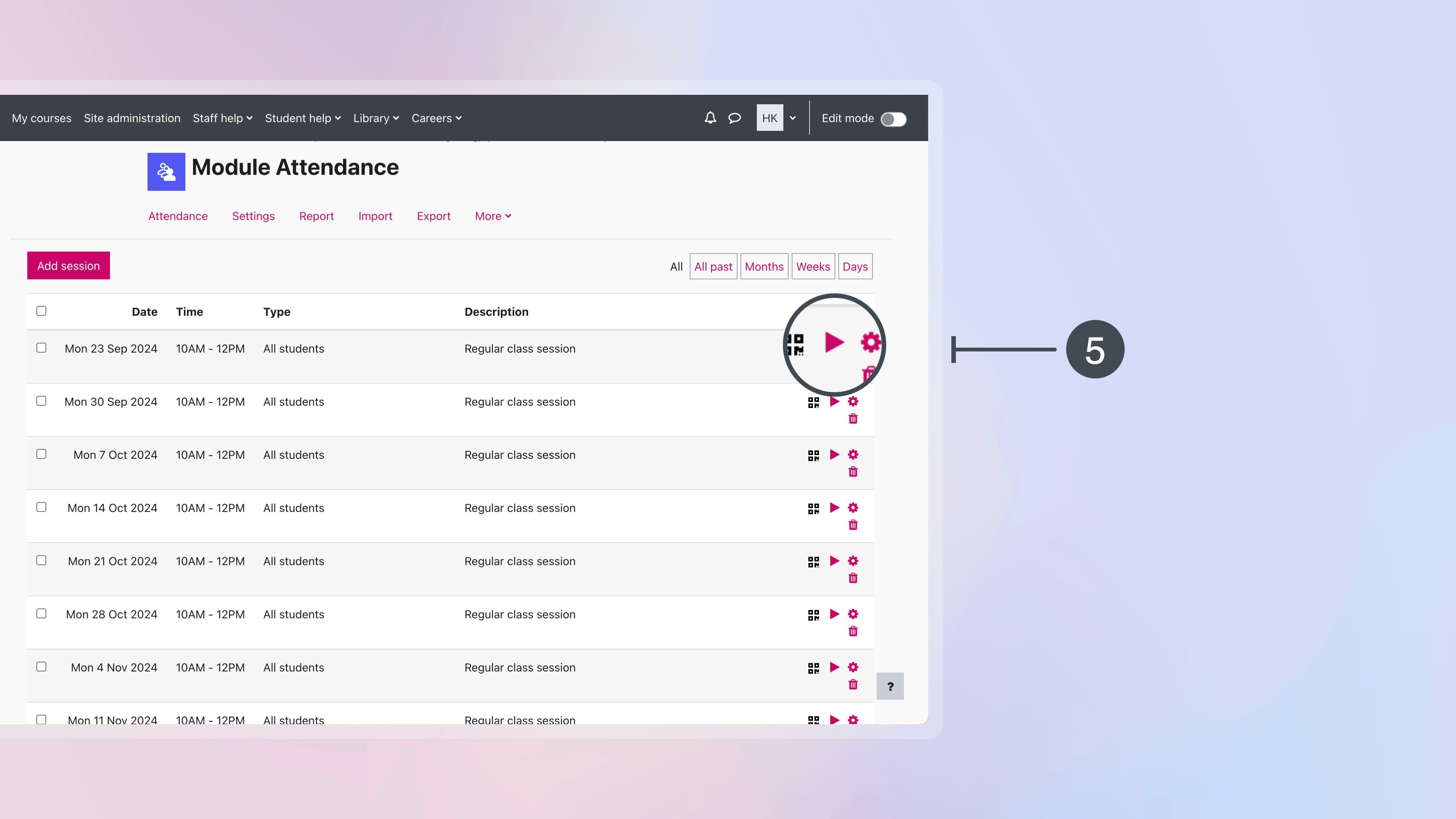
- Click the Take Attendance icon.
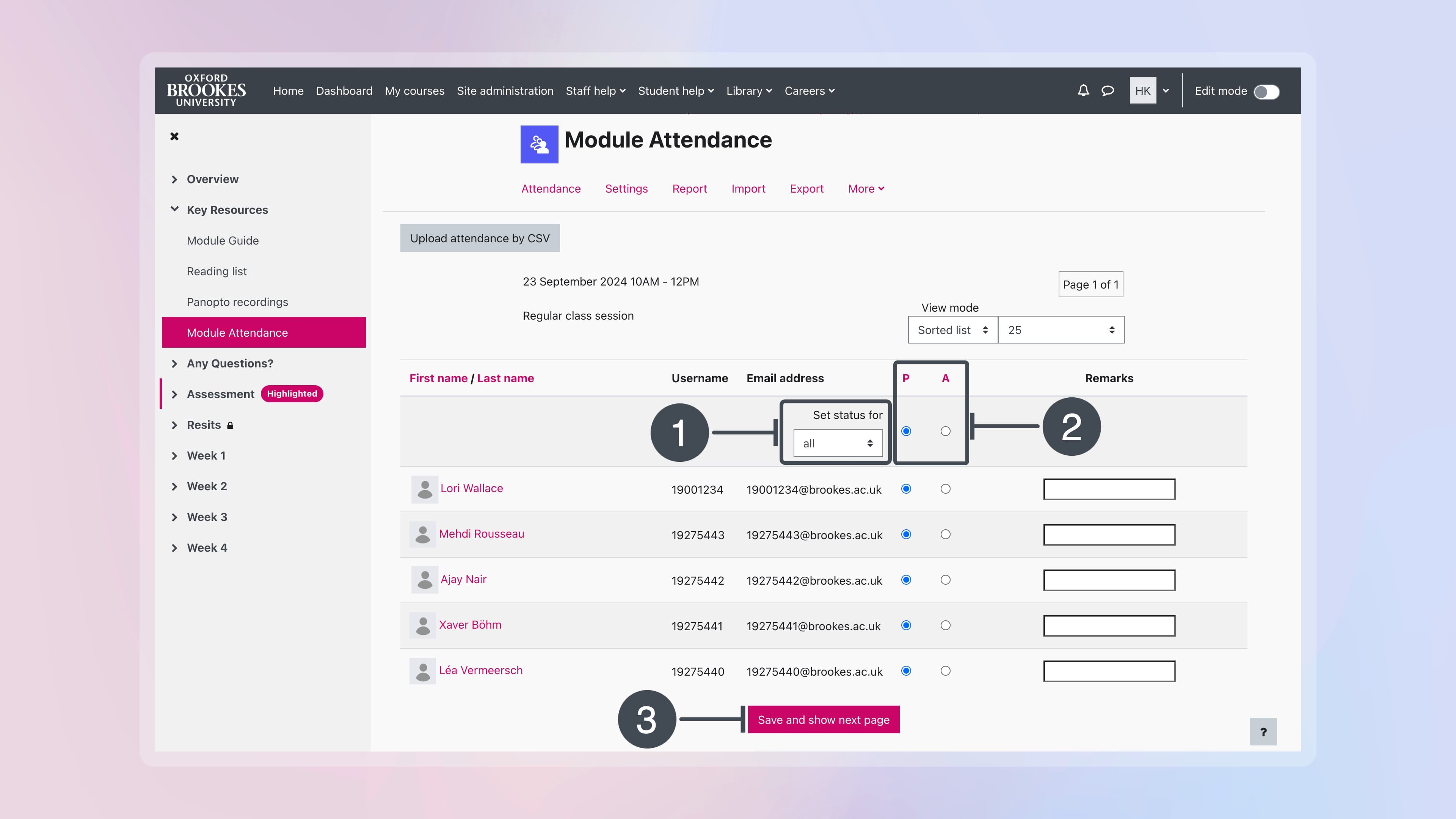
In the next screen you can record attendance of all students at once or for individual students.
Record attendance for all students at once
If the status of the attendance is the same for all students, you can register it once and Moodle will apply it to all students in the session:
- Select All in the Set status for dropdown list.
- Select the appropriate status. The current statuses are defined as P (Present) and A (Absent).
- Click Save and show next page.
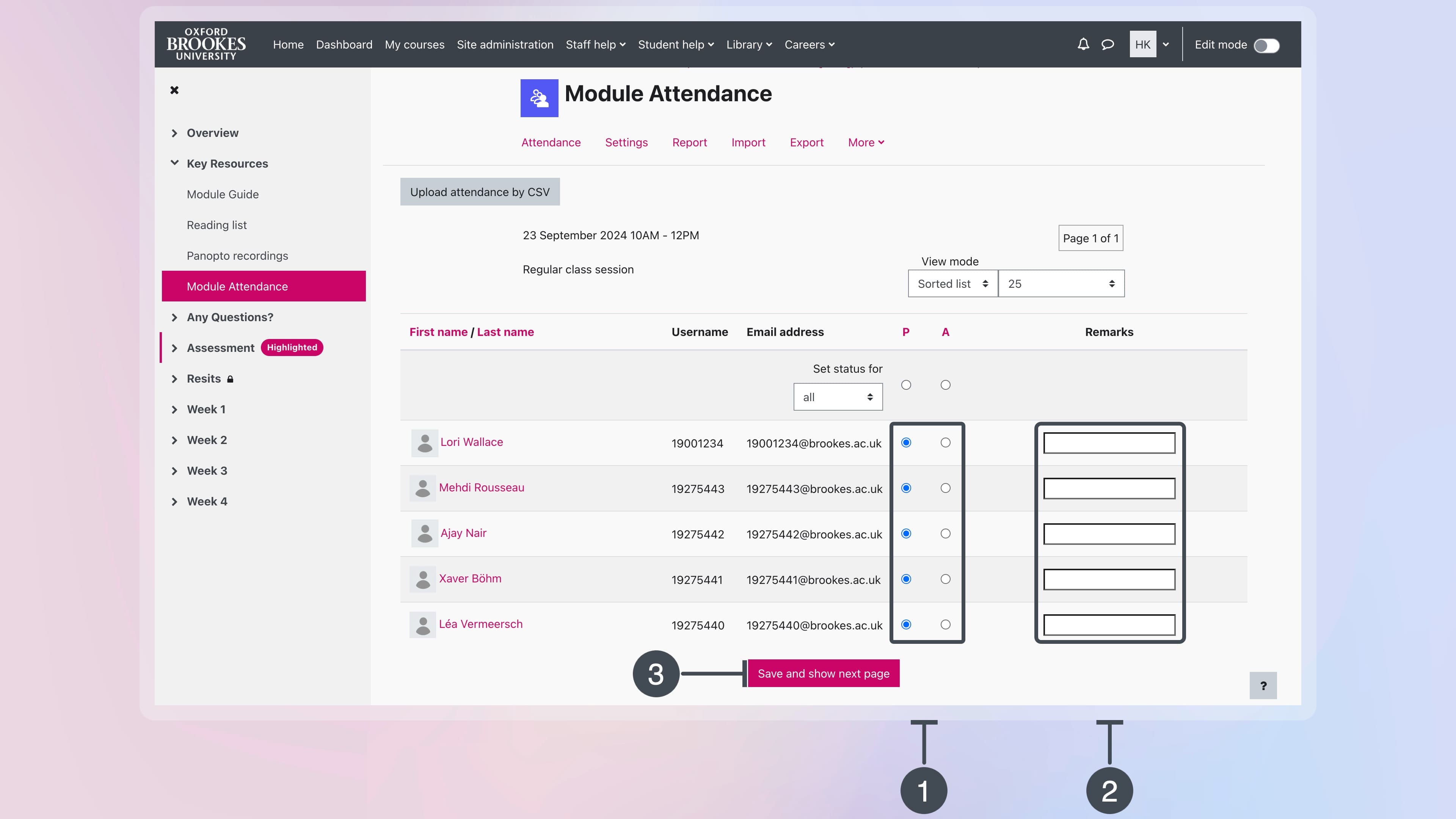
Record attendance for individual students
- Select the attendance status for each student by clicking on the appropriate circle next to their email address. The current statuses are defined as P (Present) and A (Absent).
- Should you wish to record a comment relating to a specific student’s attendance status, there is a text field under the Remarks column for each student.
- Click Save and show next page to save your changes.