The key change in Regulation 6.9.2, (a revision of the regulation for failure and reassessment for resits with multiple components) focuses on how resit marks are handled to ensure consistency across modules. The regulation ensures component weightings are considered for resits. The new regulation offers a clearer, fairer and transparent process to calculate the resit module mark, rather than interpreting if the Learning Outcomes have been met; it now uses a simplified quantitative approach. Please see guidance for full details.
Step 1: Adding the component mark
Once you have calculated the mark using the guidance, you should enter the weighted average mark as the provisional mark in the Coursework activity.
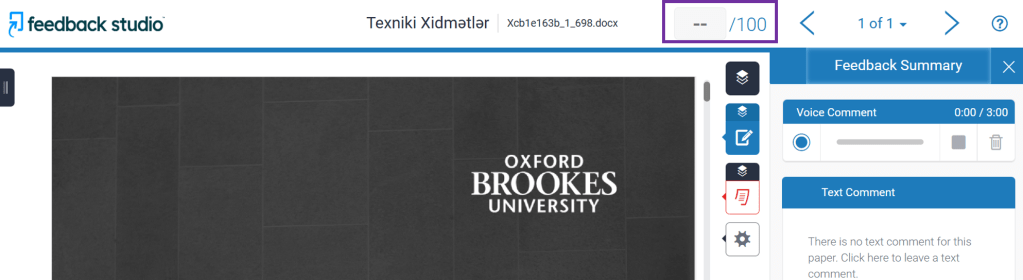
If you are marking using Feedback Studio, you should enter the component mark in the grade box at the top right-hand corner of the submission.
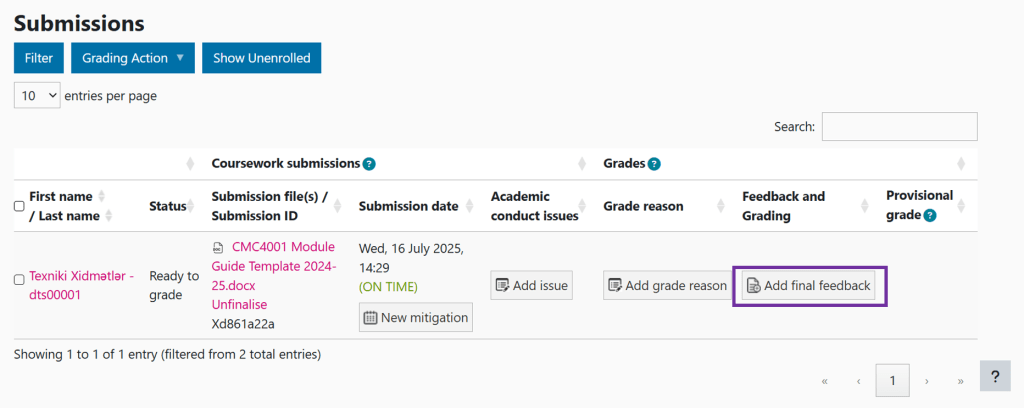
If you not marking using Feedback Studio, you should click ‘Add Final Feedback’ in the Feedback and Grading column of the Coursework activity.
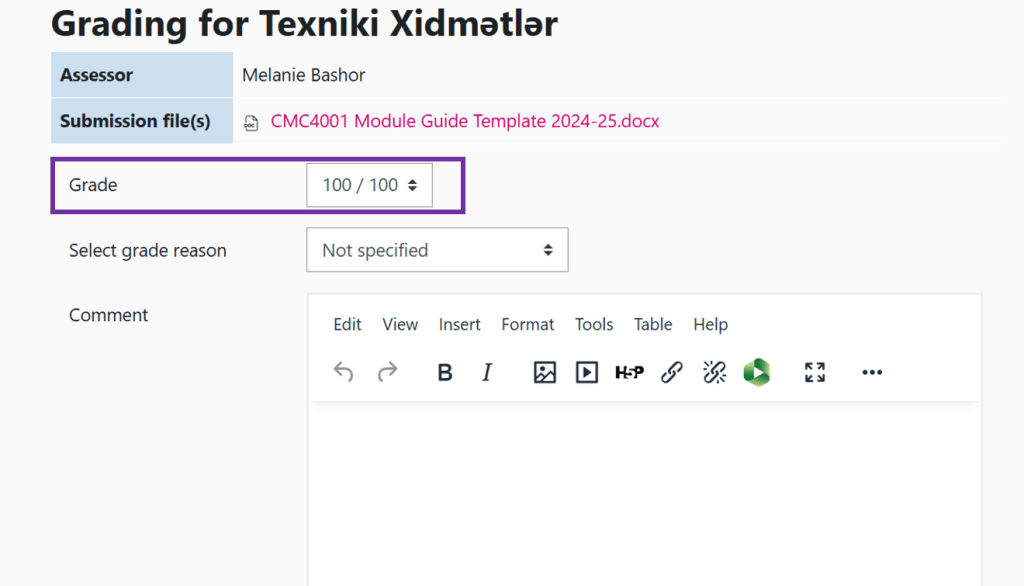
The component mark should be entered in the ‘Grade’ section using the dropdown menu.
Step 2: Confirming the raw score
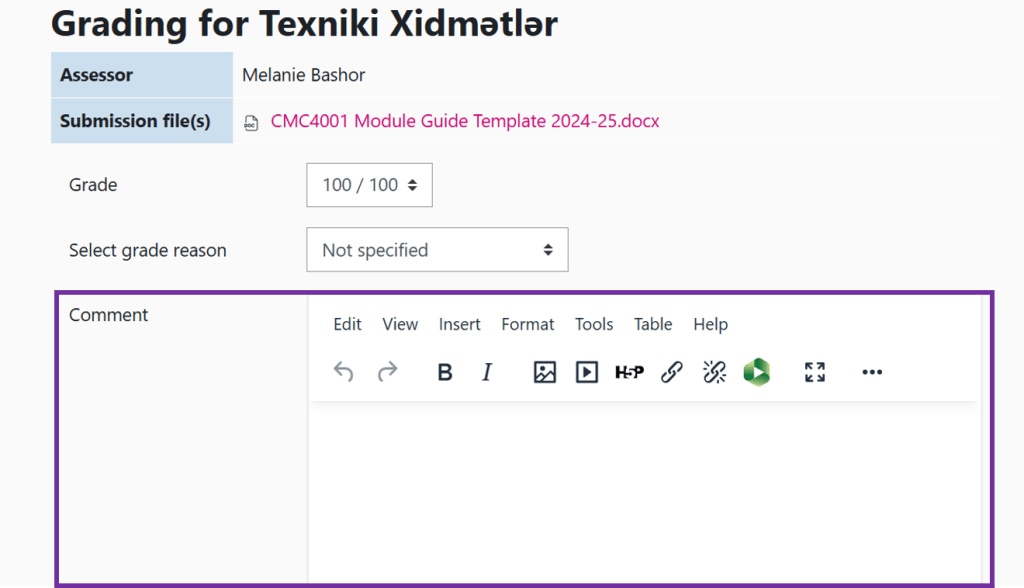
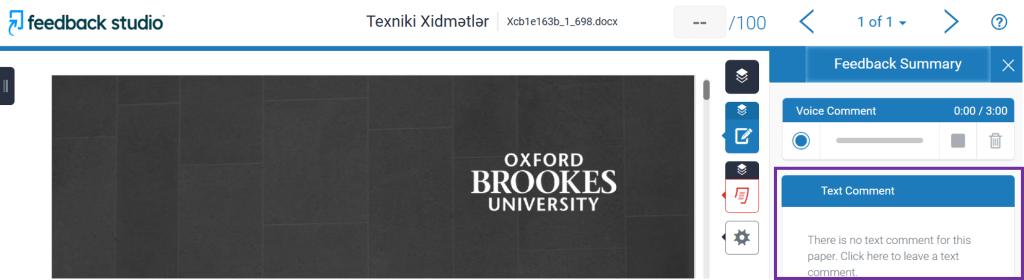
In order to confirm the raw score so that the students know what they received for each individual component they have resat, module leaders can use the Text Comment box where they normally provide written feedback to students.
If you are marking using Feedback Studio, the raw score should be entered in the ‘Text Comment’ box.
If you not marking using Feedback Studio, you should click ‘Add Final Feedback’ in the Feedback and Grading column of the Coursework activity.
The raw score should be entered in the ‘Comment’ section.