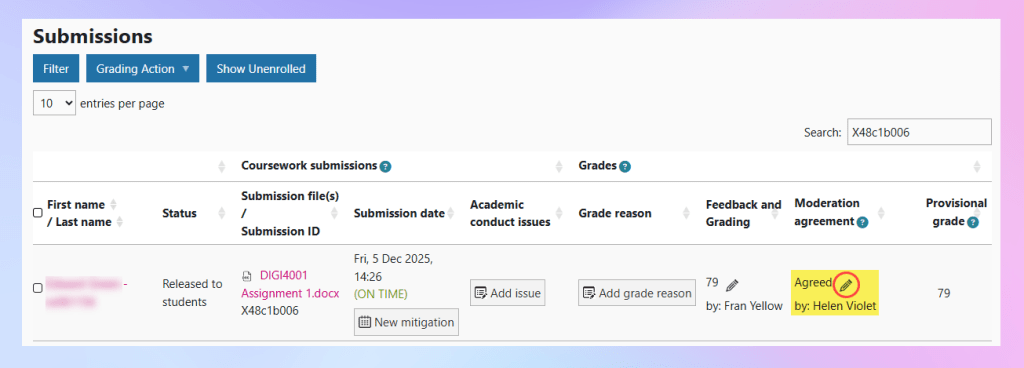
As an External Examiner, you will need to be able to access the submission, grades and feedback for a submission and any moderation information that has been recorded.
Follow the steps below to access this information.
Locate the submission
- Go to the Coursework activity
- Above the list of all submissions, enter the unique ‘Submission ID’ into the Search box on the right:
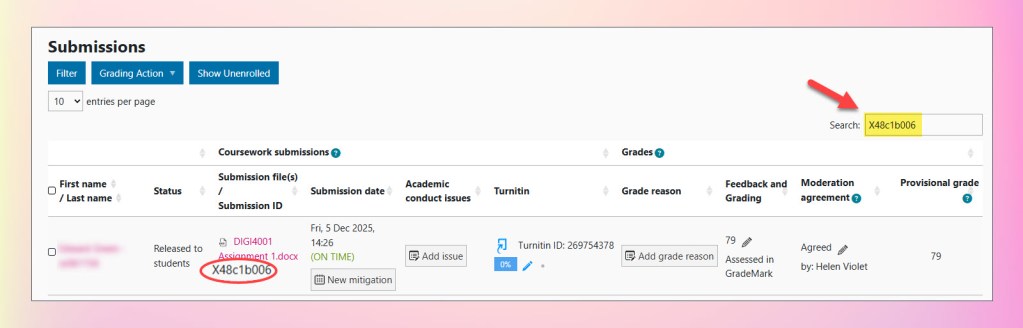
- The list of submissions should now be filtered to include only the submission matching the Submission ID.
View grade/feedback
Assignment configuration 1: Turnitin enabled
If the assignment has been configured for Turnitin, there will be a Turnitin column in the listings page.
Markers are advised to add grades and feedback via Feedback Studio; this can be accessed and viewed in the usual way using the ‘pencil’ icon :

For information on how to view grades/feedback in Feedback Studio, please refer to the ‘View the Feedback’ section of the article: Where can I find my submission feedback (in a summative dropbox)?
If the grade/feedback information has been entered in Feedback Studio, the grade should also appear in the ‘Feedback and Grading’ column with the text Assessed in GradeMark.
If different text is displayed here, also follow the steps below (in ‘Assignment configuration 2: Turnitin not selected’)
Assignment configuration 2: Turnitin not selected
Where Turnitin has not been selected, there will be no Turnitin column in the listings page and the grade/feedback can be accessed from the ‘Feedback and Grading’ column.
Click on the ‘pencil’ icon to view the Grade/Feedback within the Coursework activity ‘Feedback and Grading’ area:

View moderation information
Moderation information relating to a submission may have been supplied to you separately, however Coursework also offers its own place to add Moderation.
If moderation information has been left within a Coursework activity, you will see the Moderation column and a note that moderation has been recorded. Again, click on the ‘pencil’ icon to view any moderation comments here: