
One of the Key resources you should make sure to include in your Moodle courses is the reading list for your module. You can also embed sections from the reading list in the individual sections of a Moodle course, which has been shown greatly to increase student engagement with the reading list. In the Moodle 4 template for academic courses, your whole reading list should be included in the Key Resources section. We recommend putting it just below the module handbook, so students can find it quickly.
What tool should I use to create my reading list?
We recommend that you create all reading lists using the Aspire online reading list tool. This has lots of benefits over uploading a reading list document or linking to individual items from Moodle:
- It can save you a lot of time and effort!
- Lists are dynamic and up-to-date – as soon as you make a change, it will be reflected in all routes that students might use to access reading lists (e.g. via Moodle, the Library homepage etc.)
- Your Academic Liaison Librarian will be aware of items on reading lists, will be notified of published changes and can plan accordingly.
If you have not used Aspire before, you should get help with creating and updating Aspire lists by first contacting your Academic Liaison Librarian (ALL) so that you can be set up with the appropriate access and permissions.
If you have used Aspire before, and have been set up with the approriate publisher permissions by your ALL, you can get help with updating Aspire lists by visiting our self-teaching Moodle course on how to use Aspire, our PDF guides or with this short slideshow introduction.
Once you have a finished list, you can link it to your module, and this will enable it to appear on Moodle.
How do I embed the whole reading list in Moodle?
Log into your Moodle course and go the Key Resources section. If the reading list is not already there, you will need to add it just below the Module Guide for the course.

- Turn editing on.
- At the bottom of the section choose Add an activity or resource.
- Select the Activities tab.
- Click on the Course Resource List activity (with a blue Talis icon).
- Do not fill in an Activity name at this point as this will be overwritten when you add your list.
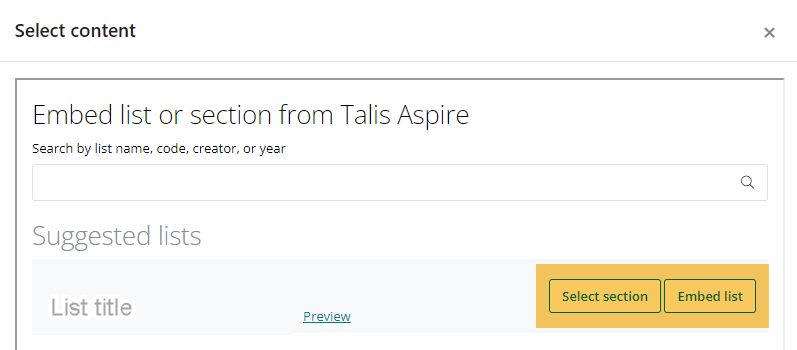
- Click ‘Select Content’
- Under Suggested lists, Moodle should have automatically found the linked reading list if it is attached to the correct Module code in Aspire.
- Click ‘Embed list’
- The activity automatically populate a the title ‘Talis Aspire’ followed by the name of your list. This won’t mean anything to students, so change the activity name to Reading list.
- Click Save and return to course
Note: If you are offered several lists, make sure you choose the right one. If your list is not offered, you can search for it in the search box.
How do I embed one section of the reading list in Moodle?
You can go one step further with this if you choose, and embed particular sections of the reading list into particular Weeks or sections of your course page on Moodle. By using the Course Resource list activity (with a blue Talis icon) these embedded readings will rollover each term when you rollover the rest of the content.
- First make sure your reading list is organised into sections. For example, if you want a set of readings for Week 1, create a section in Aspire called Week 1 and drag the readings into there.
- On Moodle, go to the section you want to add readings to (e.g. Week 1) and click Add an activity or resource.
- Click on the Course Resource List activity (with a blue Talis icon).
- Do not fill in an Activity name at this point as this will be overwritten when you add your list.
- Click ‘Select Content’
- Under Suggested lists, Moodle should have automatically found the linked reading list if it is attached to the correct Module code in Aspire.
- Click ‘Select section’
- Choose the section of the reading list you would like to embed and click ‘Embed section’.
- The activity automatically populate a the title ‘Talis Aspire’ followed by the name of your section. This won’t mean anything to students, so change the activity name to something more relevant such as Week 1 readings.
- Click Save and return to course.
Note: When students click on the link in Moodle, they will be taken to a page with the reading list or section of the list that you have selected. Please note that the ‘Back’ button in their browser will not work from this page and they will need to navigate back to your course in another way.
How do I add the reading list block in Moodle?
If you think your reading list should be linked to the Moodle page, but it is not appearing in the Moodle block:
- Turn editing on.
- Open the Block drawer by clicking on the pink arrow icon on the right-hand side of the screen.
- At the top click Add a block.
- Choose Reading Lists.
- A new Reading Lists ‘block’ should now have appeared on the right, with a link directly to the relevant list on Aspire. We recommend locating these towards the top of the right hand set of blocks on the page, for consistency across modules.